Everyday use of MFA
This example shows the Verified Push experience while signing in to a Microsoft application such as web email. Your steps may vary slightly by application, but the Verified Push experience is the same.
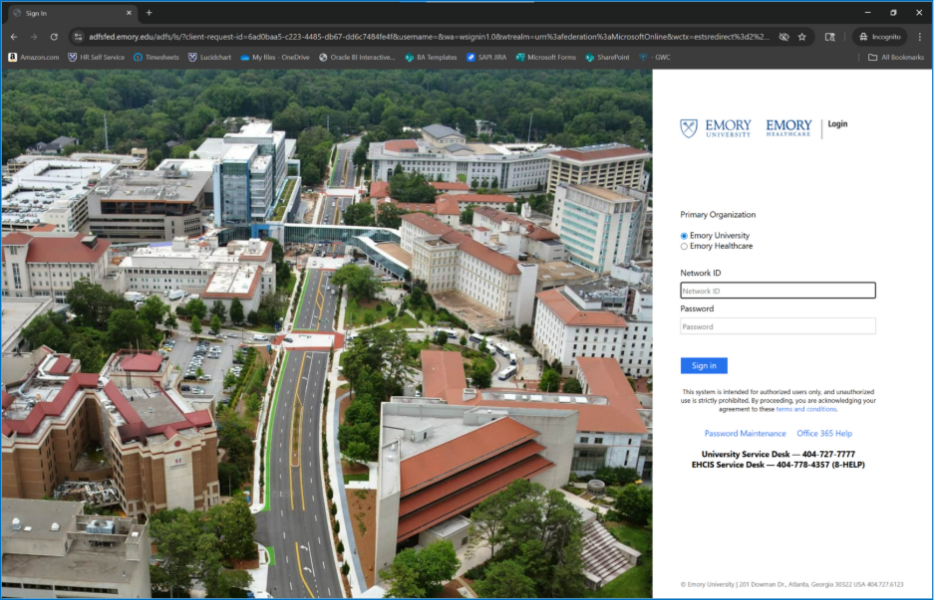
- Enter your NetID and password to sign in to a Duo-integrated application (for example email.emory.edu).
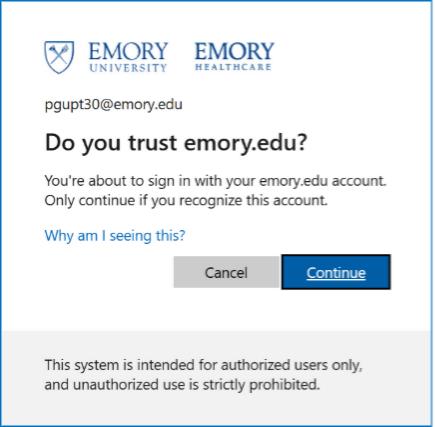
- If a “stay signed in / trust” prompt appears, select Continue. Emory Healthcare users will see eushc.org rather than emory.edu.
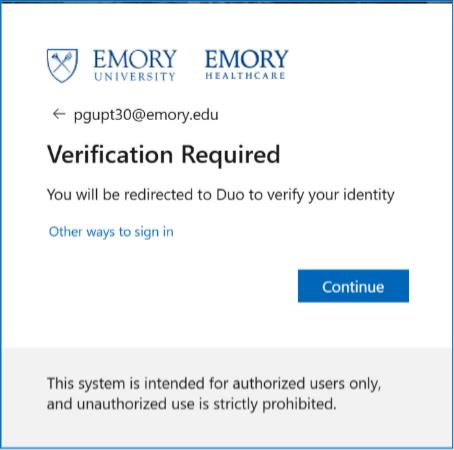
- Select Continue to proceed to Duo verification.
- A 3-digit verification code appears on your login screen, and you receive a push notification from Duo Mobile.
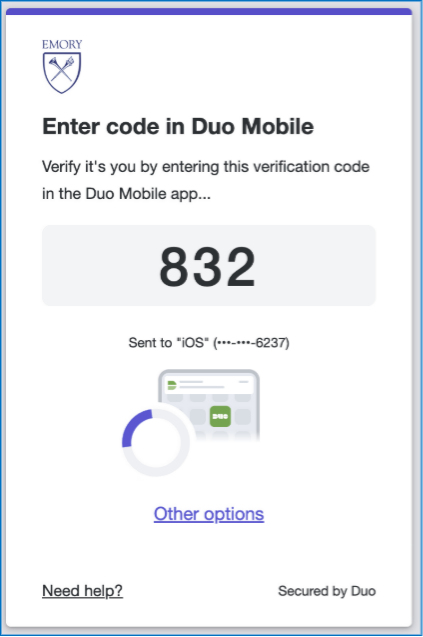
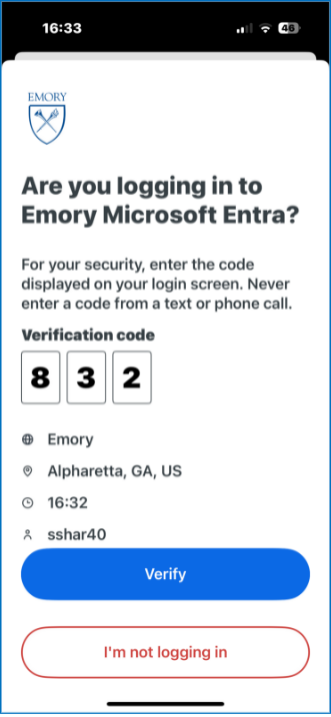
- Open Duo Mobile and enter that code to approve. (For your security, only ever enter a code shown on your own login screen - never one from a text or phone call.)
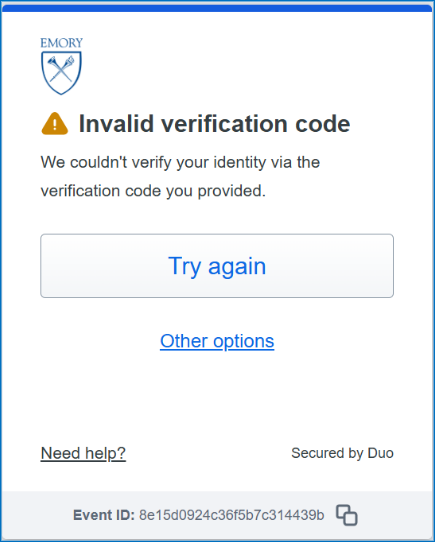
- If the code is entered incorrectly, you will see an error and can try again.
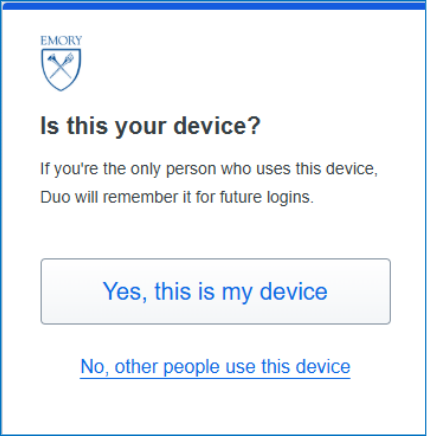
- On a personal device, choose Yes, this is my device so Duo remembers it for future logins. Do not choose this on a shared or public device.