
Smart phone or smart tablet first time enrollment (Recommended)
Enrollment is the one-time process of registering your first device. Do this on a computer - not the phone you are enrolling.
During setup you will move between your computer and your phone. Watch for the colored banners below that tell you which device to use.
On your computer
- Sign in to a Duo-protected application (or the Duo Self-Service Portal) with your Emory Network ID and password.
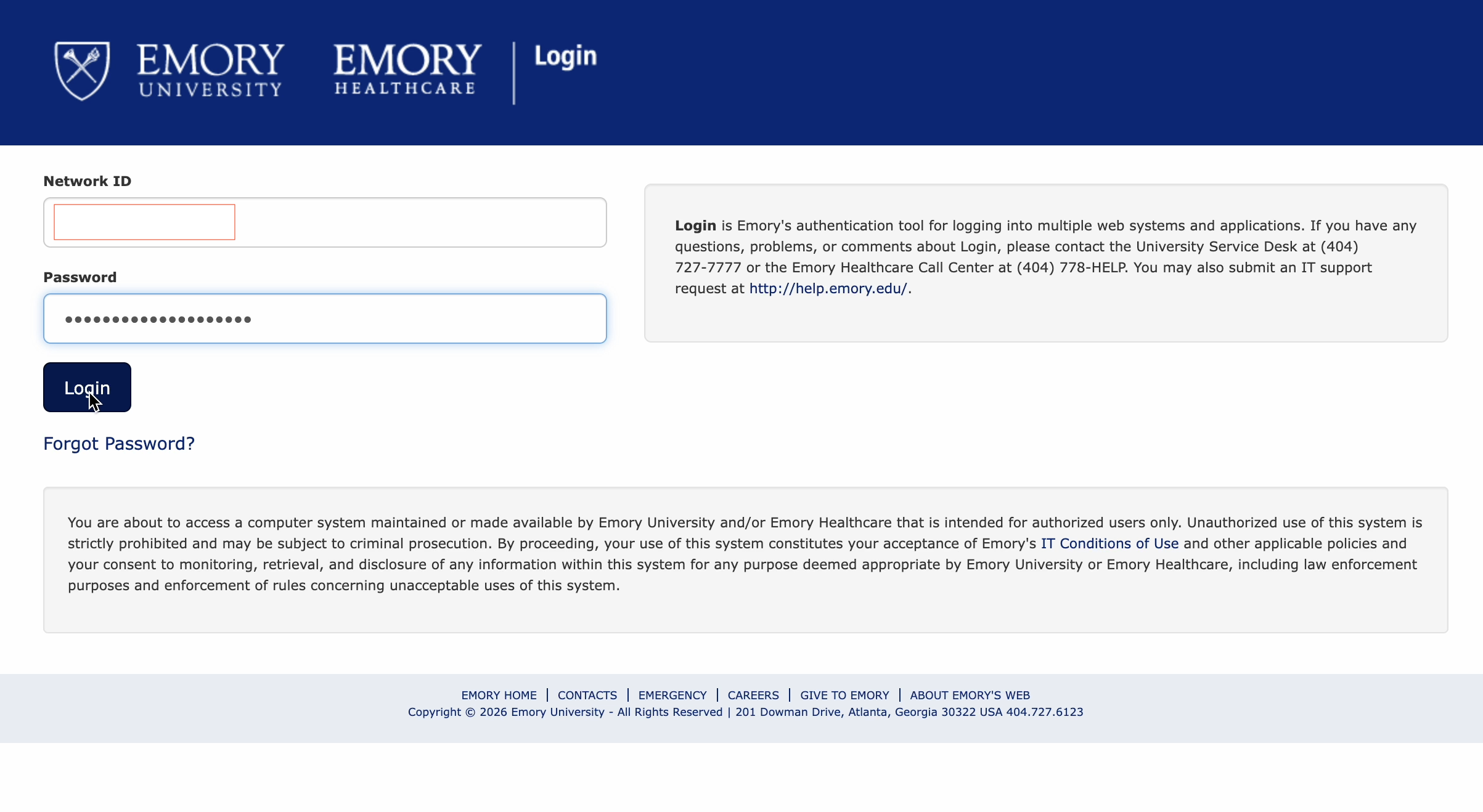
- At Welcome to Duo Security, select Get started.
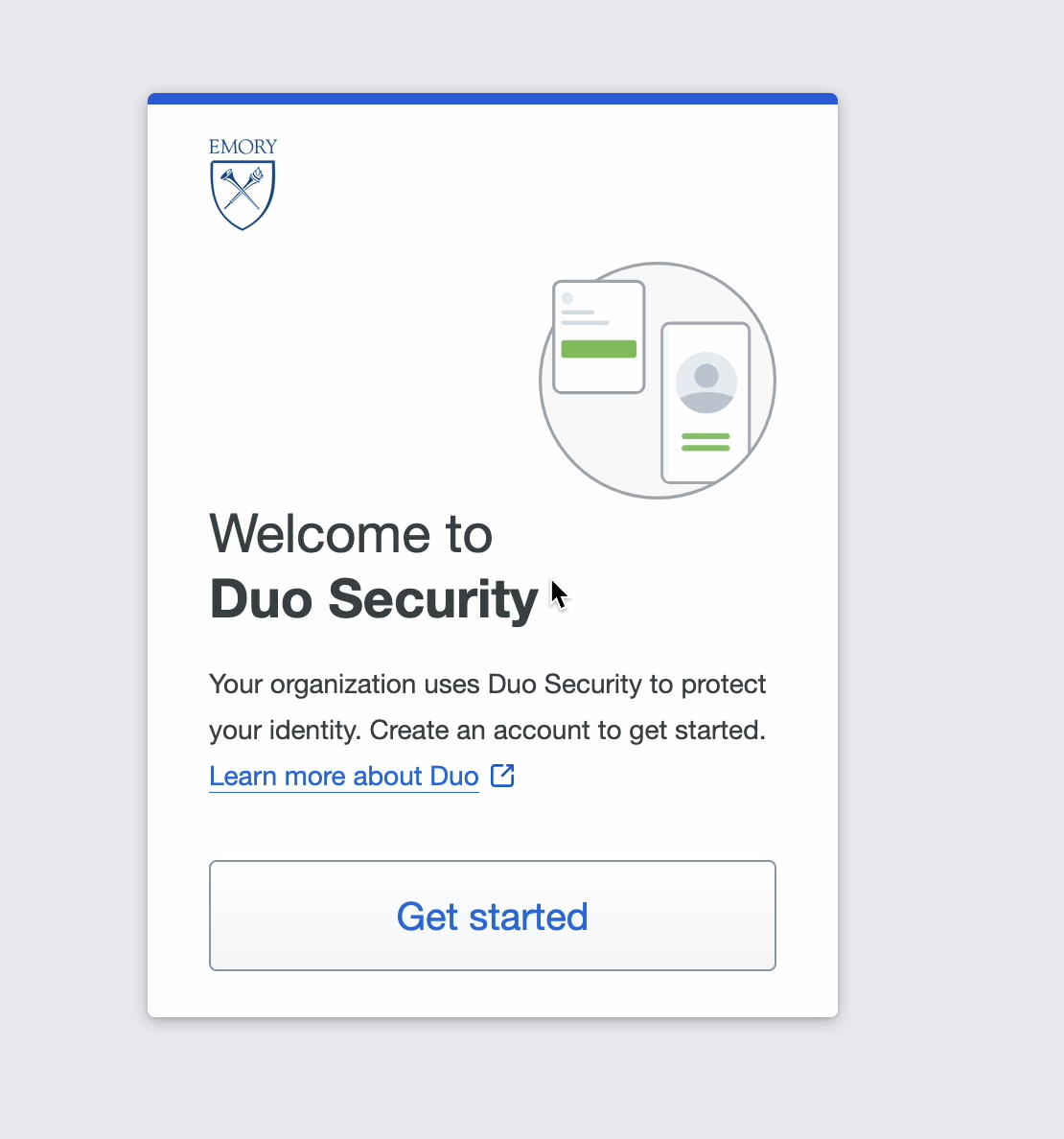
- On First, add a device, choose Duo Mobile (recommended).
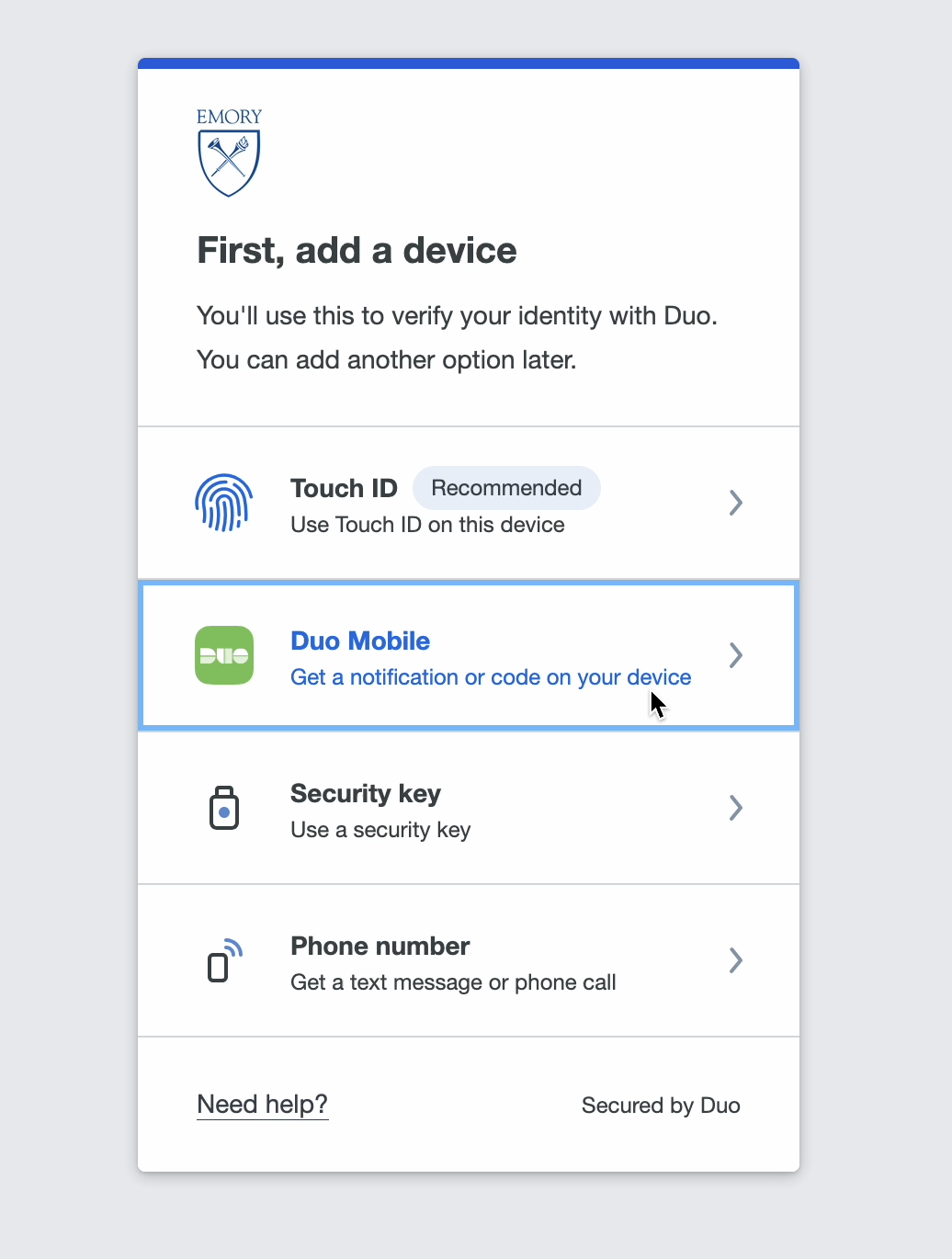
- Enter your mobile phone number, check the consent box, and select Continue. (Using a tablet with no number? Choose I have a tablet.)
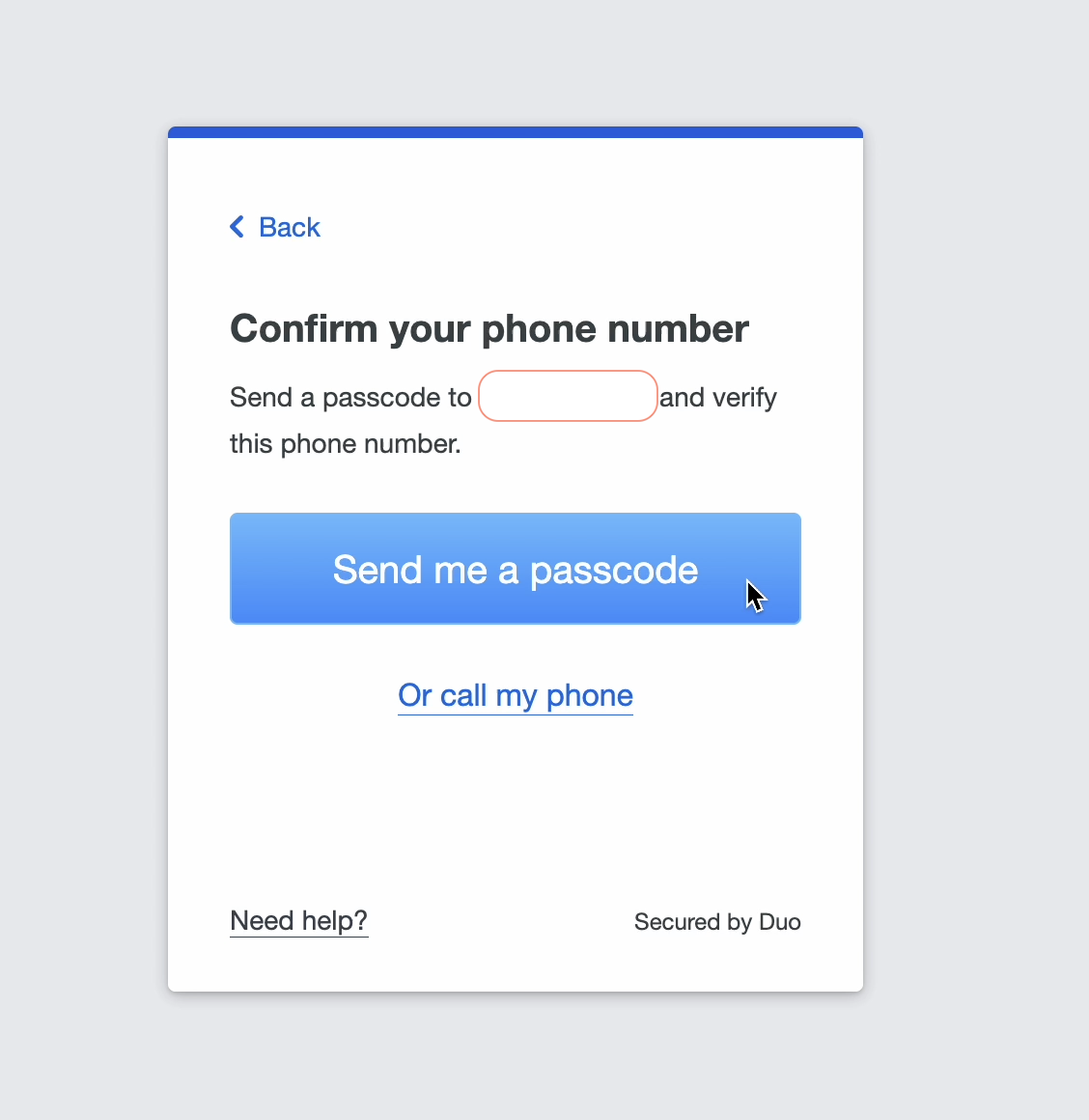
- Select Send me a passcode to confirm the number by text message.
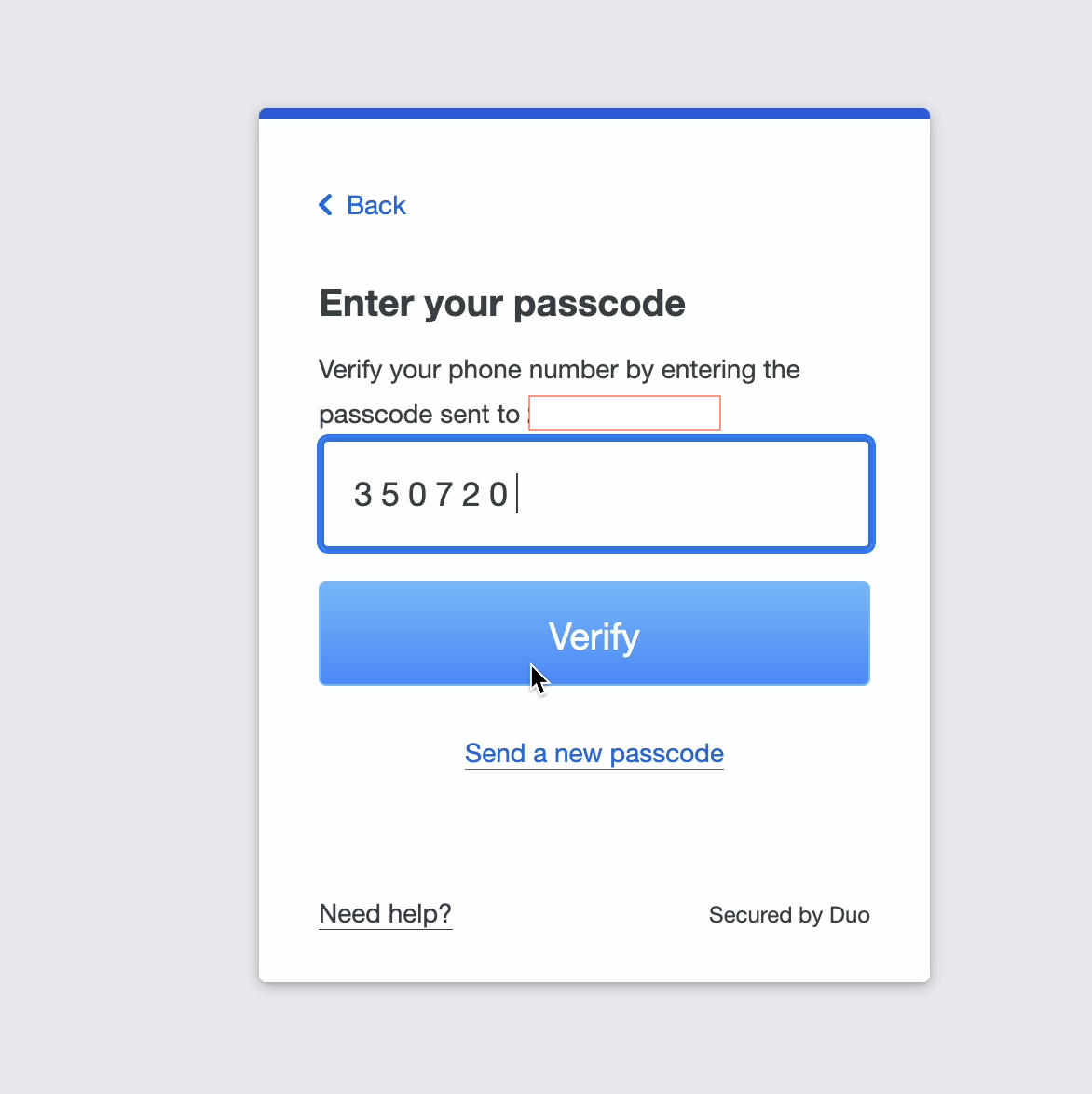
- Enter the texted passcode and select Verify.
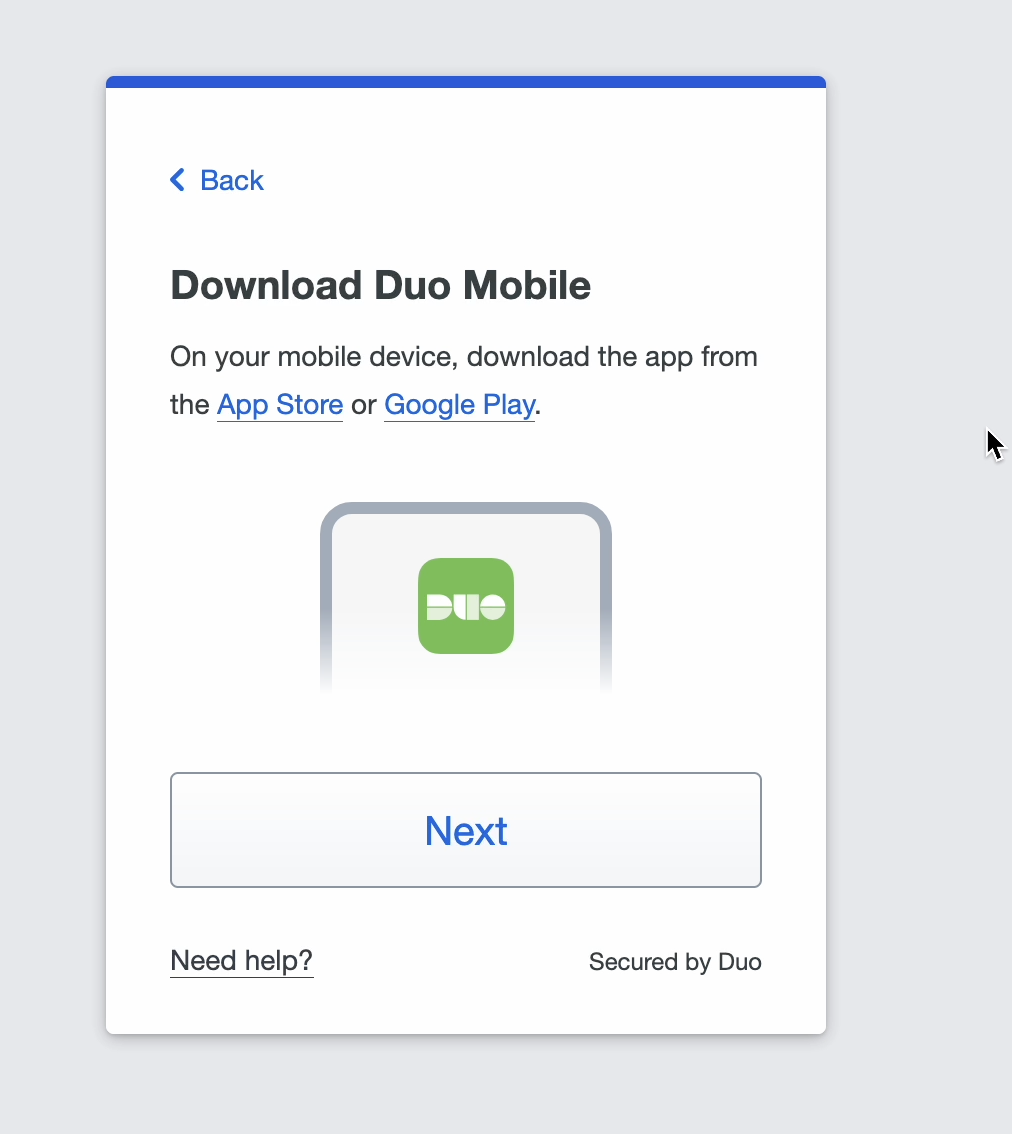
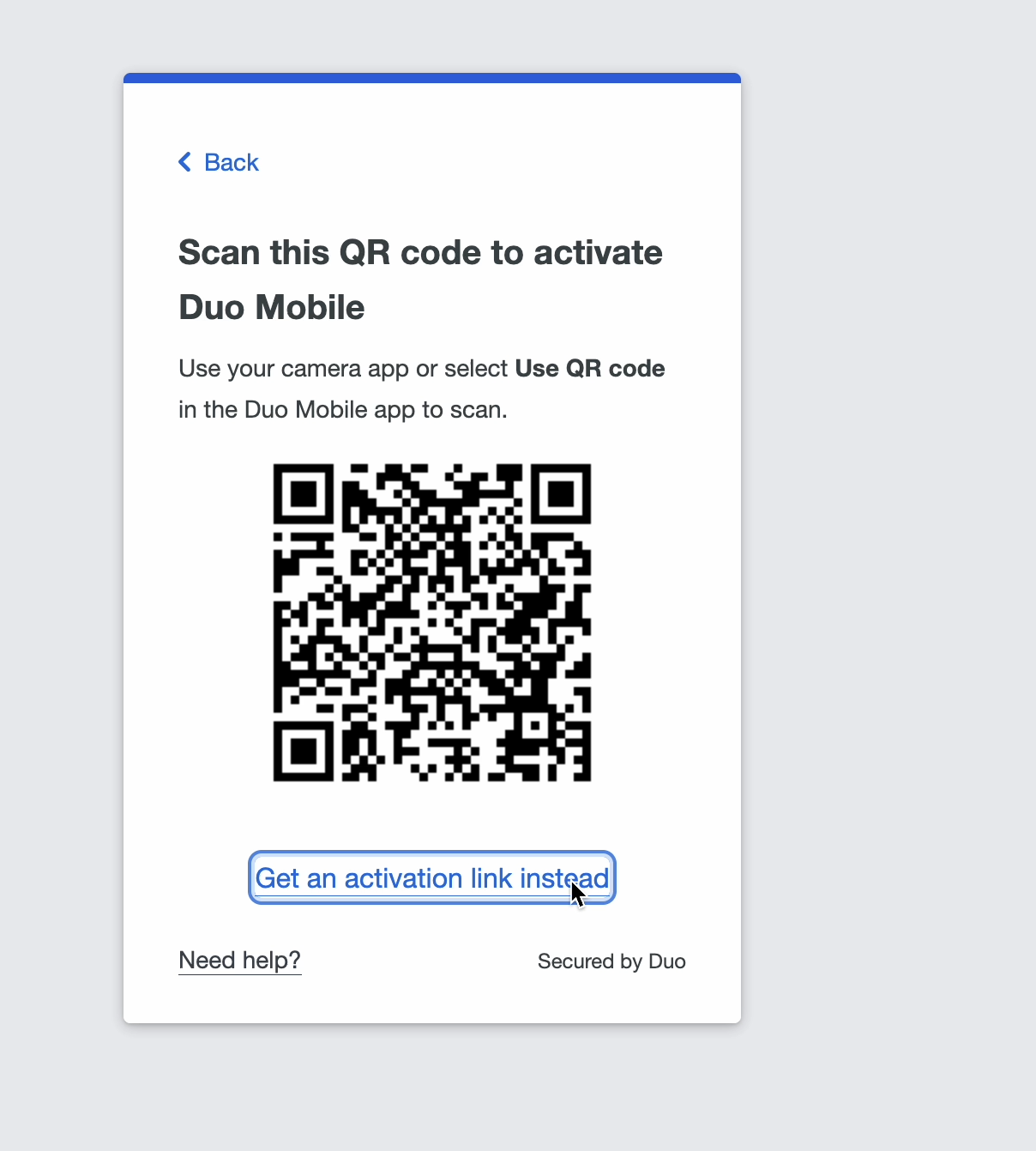
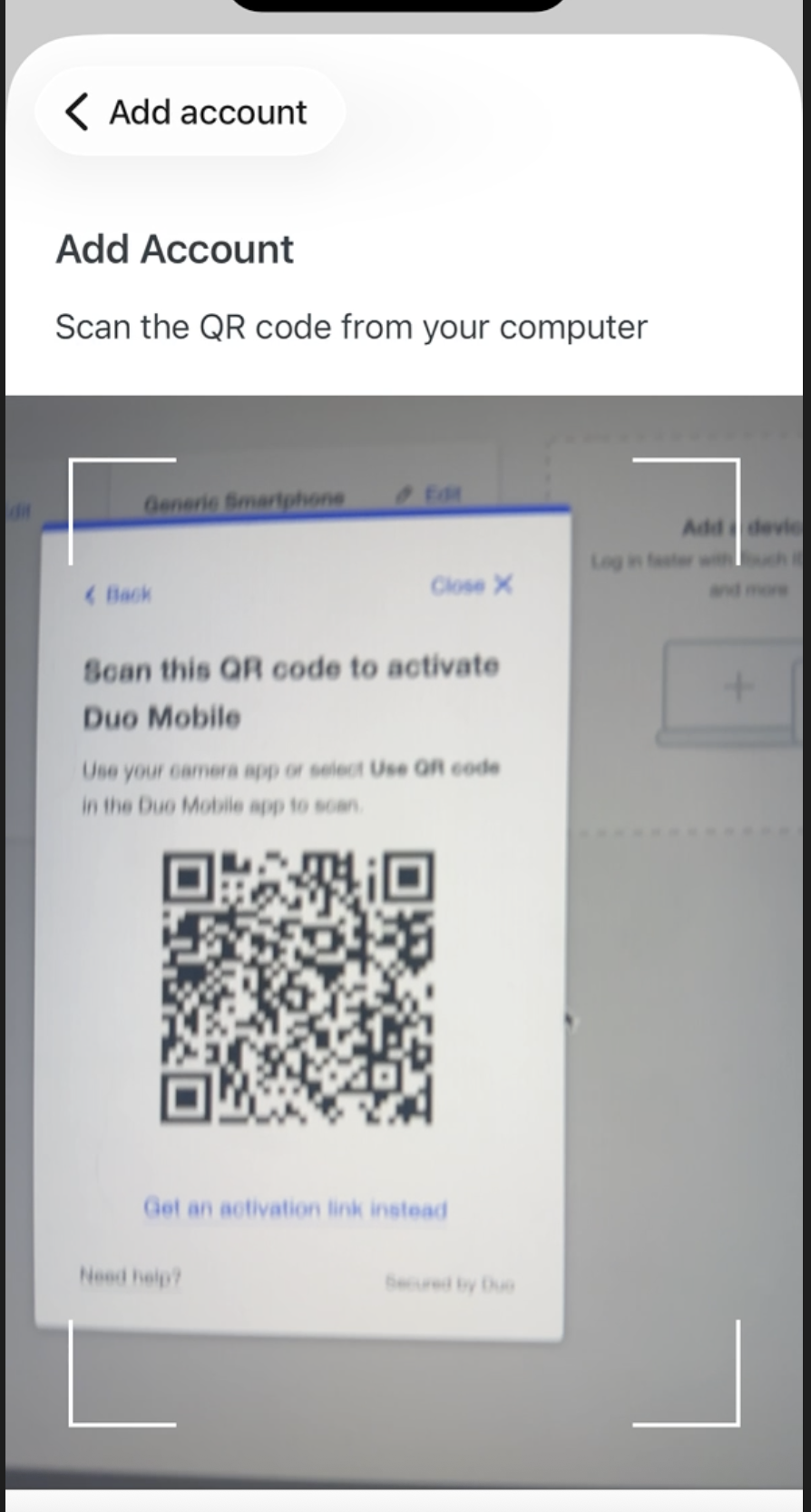
- On Download Duo Mobile, select Next, then leave this QR-code screen open on your computer - you will scan it with your phone.
On your phone (Duo Mobile app)
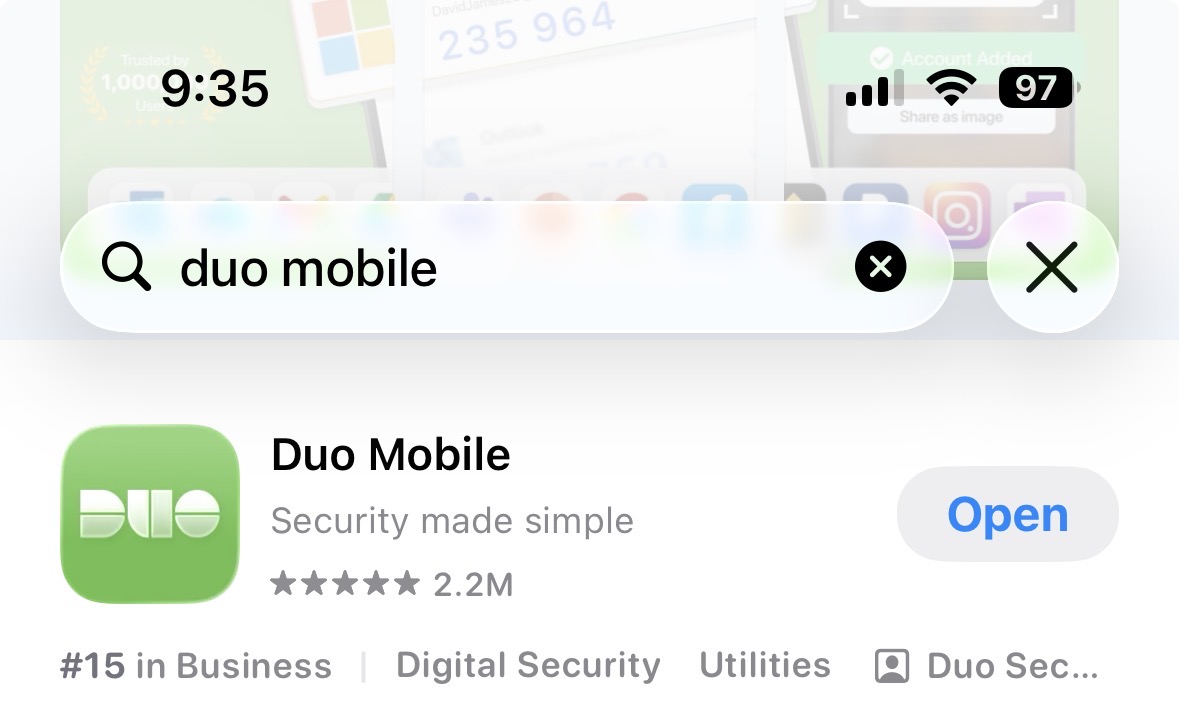
- Install the free Duo Mobile app - look for this green “Duo Mobile” icon in the App Store (iPhone) or Google Play (Android). Open it after installing.
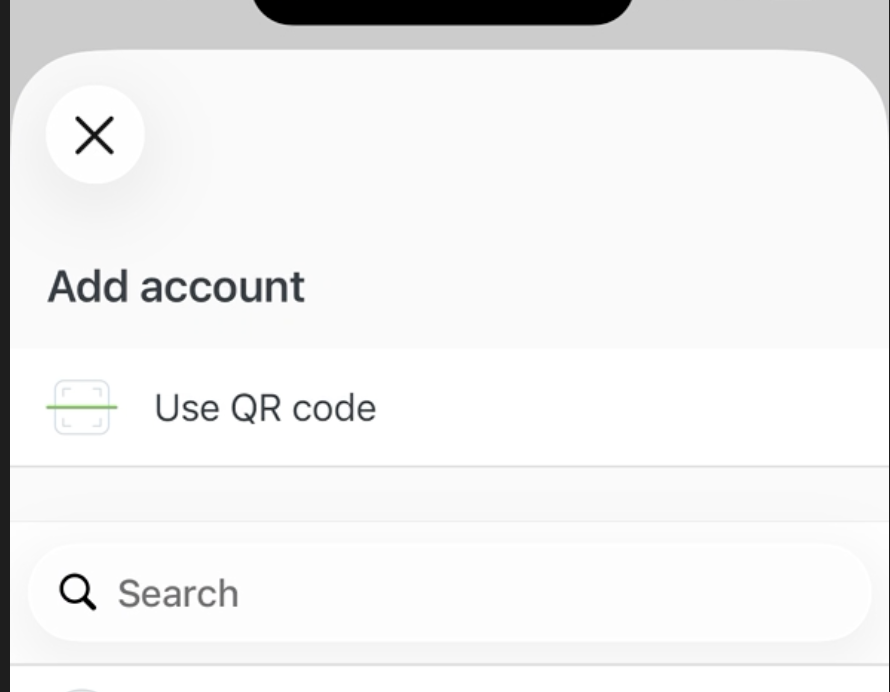
- In Duo Mobile, tap Add, then Use QR code.
- Scan the QR code shown on your computer.
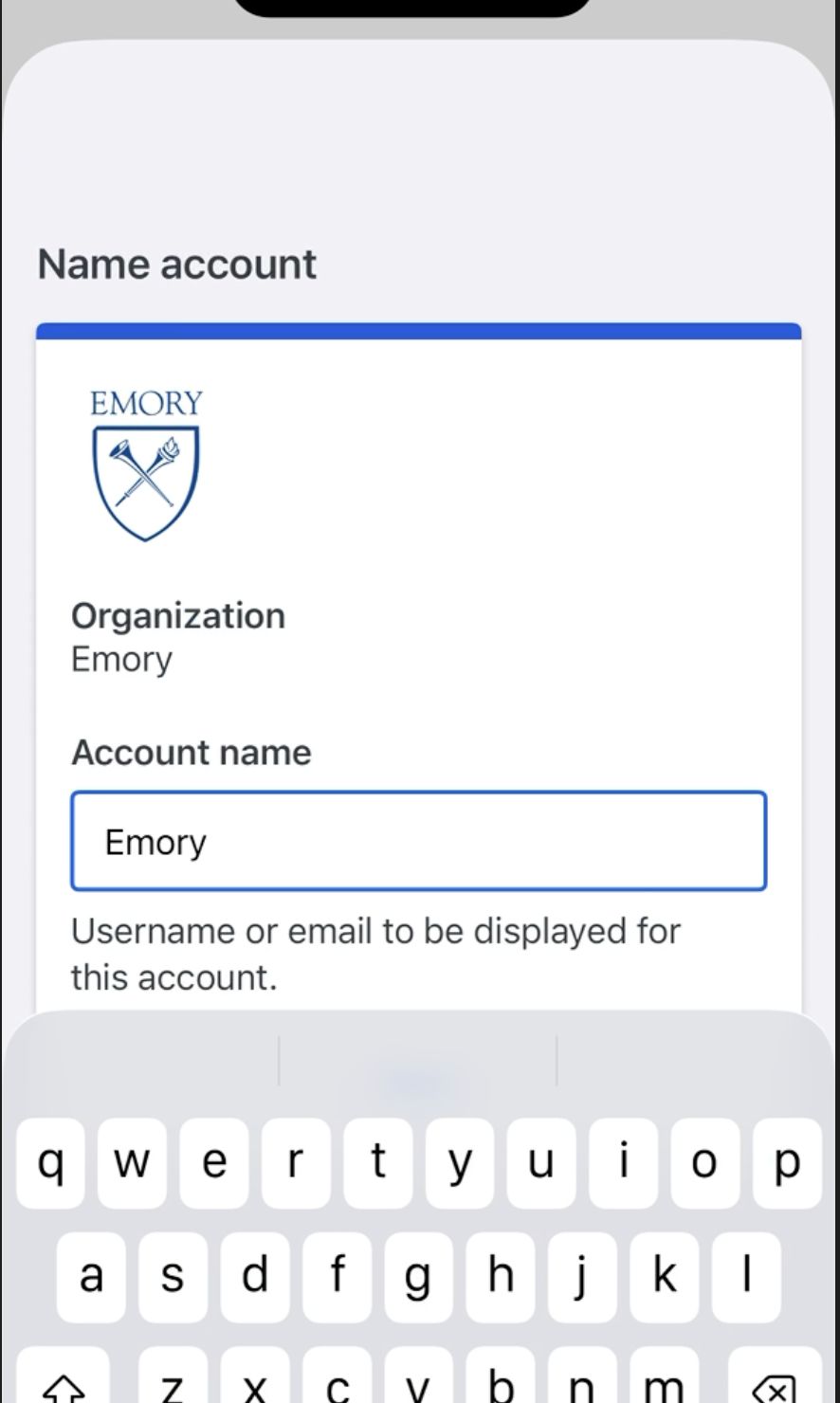
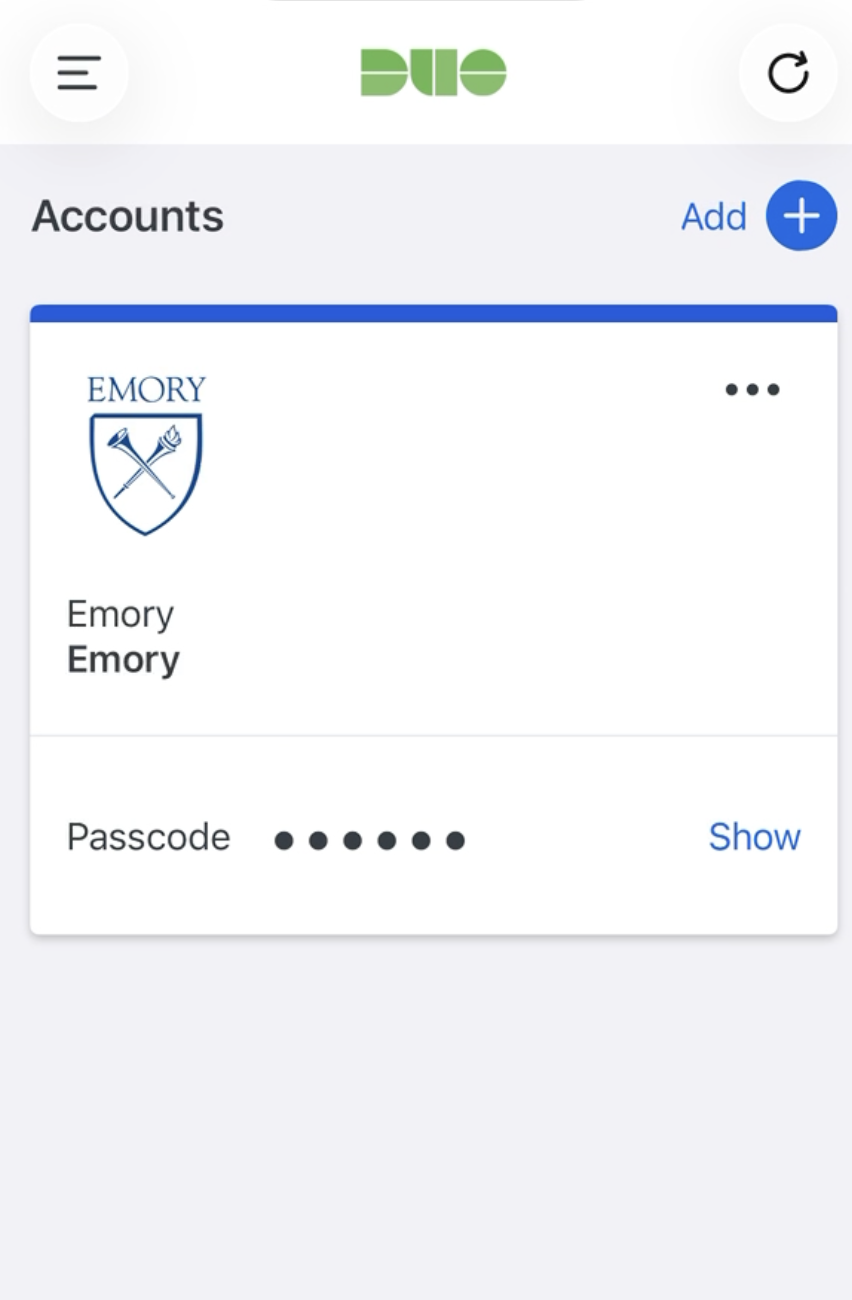
- Confirm the account name (Emory) and save.
- The Emory account now appears in Duo Mobile. Your phone is linked.
Back on your computer
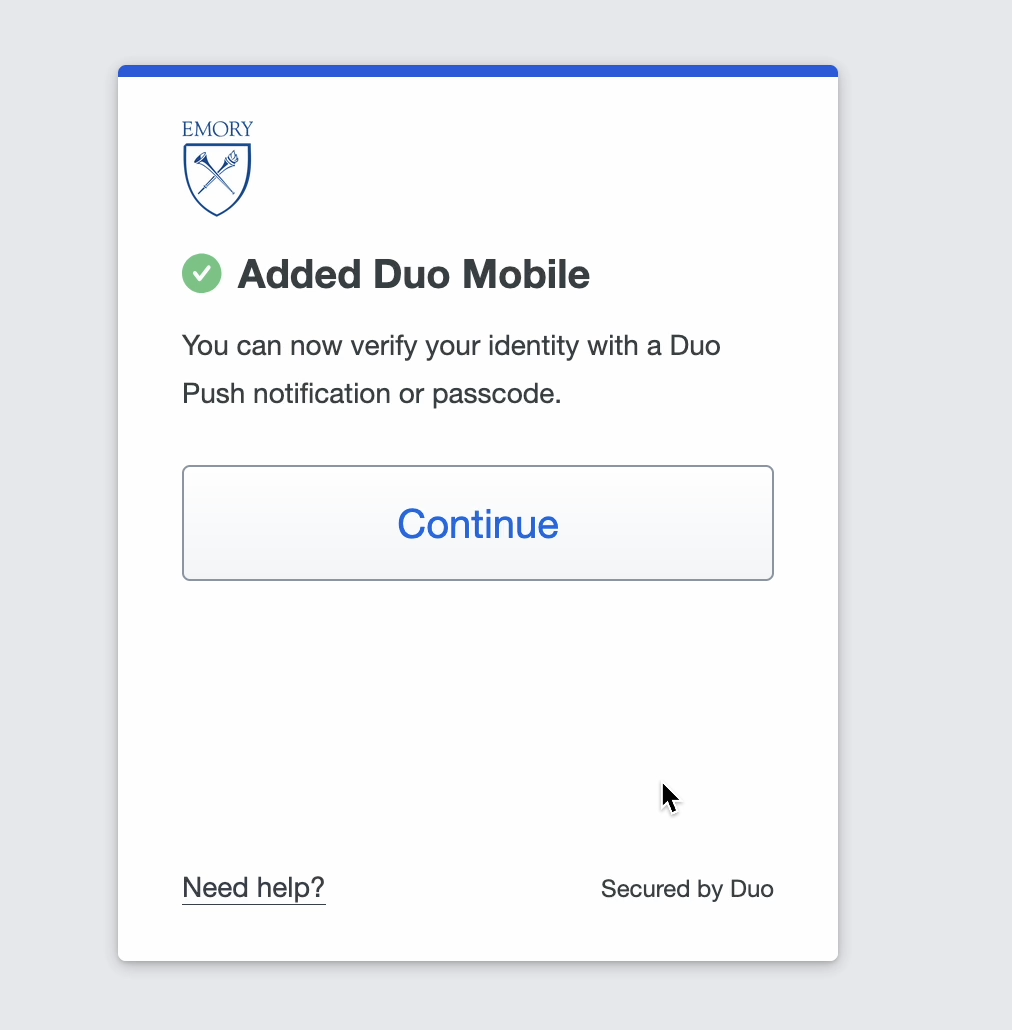
- The QR-code screen shows a green check, then Added Duo Mobile. Select Continue.
- Add one more device (recommended) for a backup - for example Touch ID or a Security key - or select I don’t want to add more devices to skip.
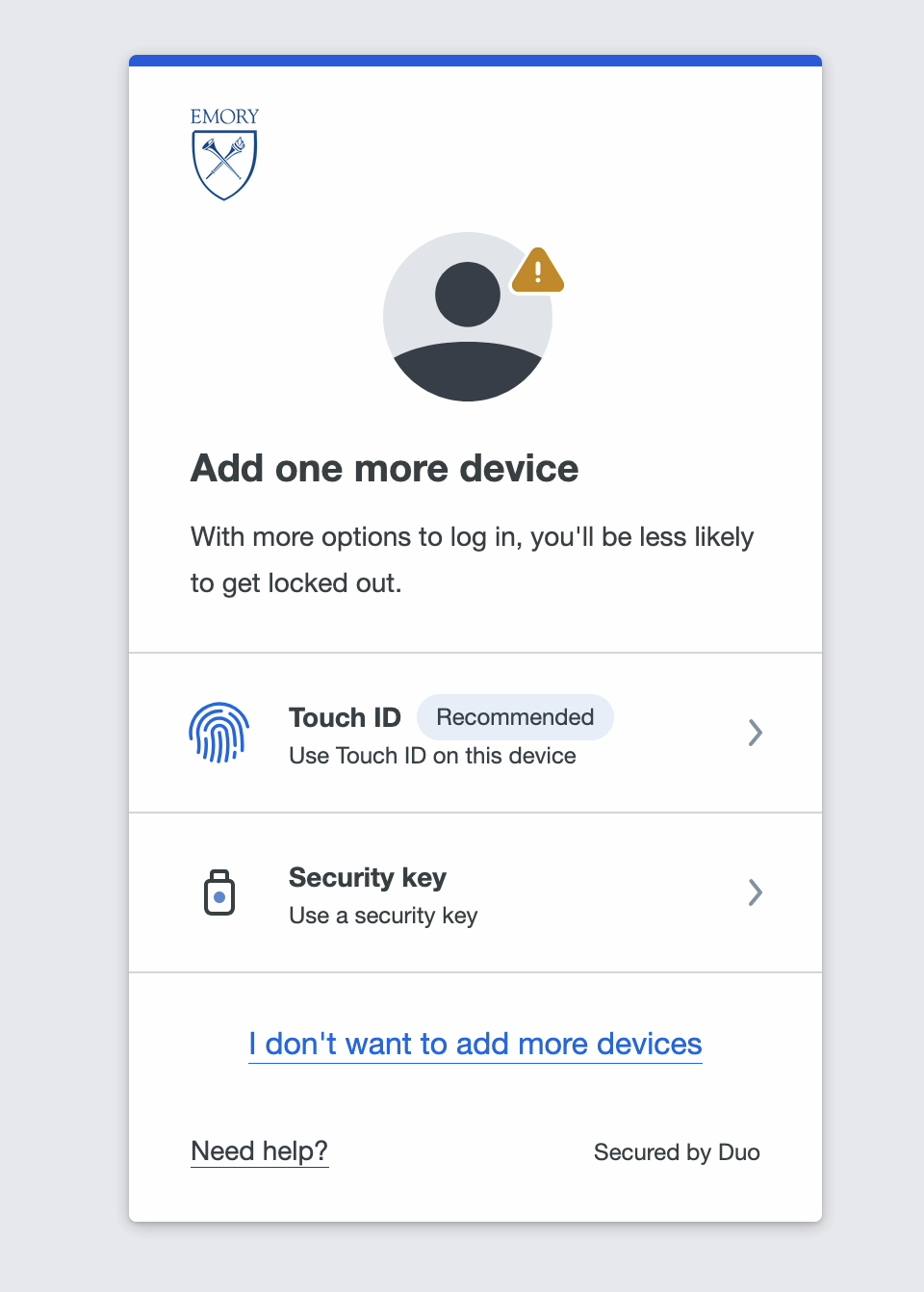
- (Optional) If you add Touch ID, select Continue and follow your browser’s fingerprint prompt.
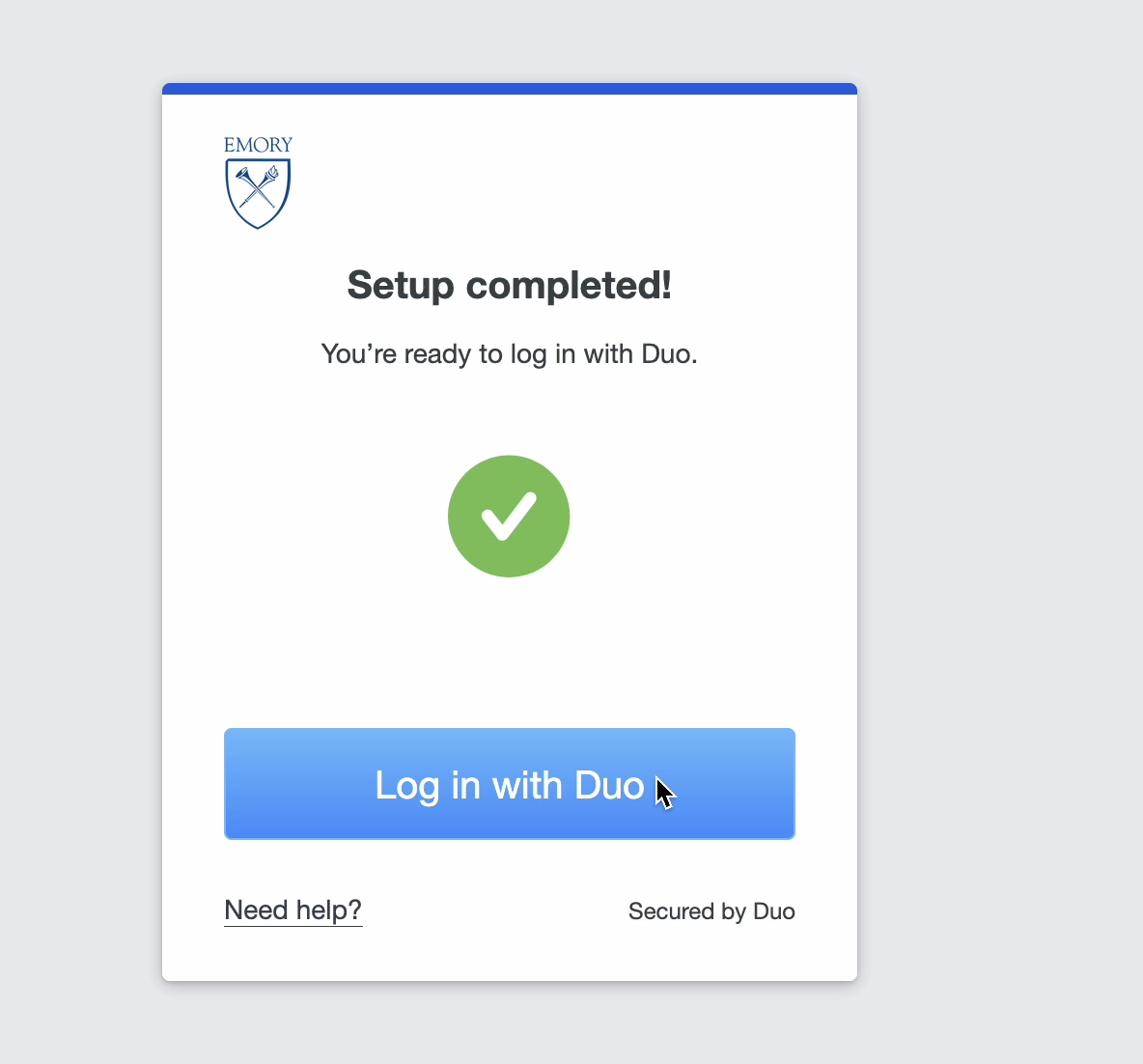
- When you reach Setup completed!, select Log in with Duo. You will see a brief Success! Logging you in… and continue to your application.
Note on text message: A phone number and a text-message (SMS) code are used here only to confirm your device during enrollment. After enrollment, SMS is not an accepted method for everyday verification - use Verified Push, a Duo Mobile passcode, or a security key.
Tip: You are encouraged to register more than one device (for example a phone and a security key) so you always have a backup. See Add or manage a device below.