FAQ
Frequently Asked Questions
We highly encourage you to look through our FAQ before reaching out for help
If you are receiving requests from Duo to approve a login that you did not initiate immediately prior to getting the notification from Duo, it's very likely that someone has your password and is attempting to login with your credentials. If this happens you should deny the request(s) and change your password immediately by calling the University (404-727-7777) or Healthcare (404-778-4357) service desks, or by visiting the Knowledge base article.
If necessary, users can use a YubiKey (hardware security key). However, this option will incur a cost by your department and will need to be approved. Moreover, there may be some specialized applications (like VPN) that do not support hardware keys or tokens for technical reasons. Therefore, we strongly recommend setting up the Duo Mobile application on a Smart Phone or Smart Tablet. For more information on YubiKeys (approved devices, setup instructions, etc.), please review the YubiKey Enrollment Guide.
No. Duo will automatically default to the last authentication method used for the application being accessed or the most secure method otherwise. If that's not the correct method, you can click “Other options” in the Duo prompt and select a different method.
Edge:
- Click … -> Settings -> Privacy, search, and services -> Cookies
- Toggle the Allow sites to save and read cookie data (recommended) to on.
Firefox:
- Click on the Menu button -> Settings -> Privacy & Security
- Set Browser Privacy -> Enhanced Tracking Protection to Standard
Safari:
- Go to the Home screen by pressing the Home button
- Select the Settings icon
- Select Safari from the Settings menu
- Select Accept Cookies from the Safari menu
Chrome:
- Type the following into the Chrome URL bar to open cookie settings: chrome://settings/content
- Under Third-party cookies, choose "Allow third-party cookies"
There is no cost to download or use the Duo Mobile application. If you incur volume-based data charges today for text or network data services on your phone or smart tablet, use of Duo Verified Push or Text message passcode may incur charges. Such charges are considered personal charges, and Emory will not reimburse such charges. However, in general the data charges for most Duo users fall within their base cellular service plans without additional costs incurred. Nevertheless, if you do not wish to incur charges on your smart phone or tablet, it’s best to use the Duo Mobile passcode option (pictured below) since it doesn’t use any network data once it’s downloaded.

Likewise, the Text message passcode option may incur Text/SMS message or data fees. Therefore, if you have a Smart Phone and want to avoid such fees, we will also recommend using the Duo Mobile passcode option over the Duo Verified Push or Text Message Passcode options that might incur costs.
New smartphone:
- If your phone number has not changed, no action is needed.
- Otherwise, contact your Emory Service Desk to receive a temporary passcode which you will use at the Emory Duo Self-Service Portal. Choose “Manage Duo”, log in with your Emory NetID and password, then use the passcode to authenticate. Then select the “Add a New Device” option. From here, you can go through the process of adding your new phone.
- If needed, the University Service Desk may be reached at 404-727-7777. Emory Healthcare Service Desk (8-Help) may be reached at 404-778-4357.
New tablet:
- If you get a new tablet, even if the Duo app is restored from a cloud backup, it will lose its association with your account. You can activate your new tablet by logging into the Emory Duo Self-Service Portal. If you have an alternative way to authenticate with Duo, you can use that to authenticate. Otherwise, you should contact your Emory Service Desk to receive a temporary passcode with which you can use to authenticate. Then choose the “Add a new device” option and follow the on-screen instructions.
- If needed, the University Service Desk may be reached at 404-727-7777. Emory Healthcare Service Desk, 8-Help, may be reached at 404-778-4357.
Duo Mobile users: If you will be in places where cell coverage is poor or unavailable and you need to access Emory systems, we recommend connecting your smart device (phone or tablet) to Wi-Fi if possible, so that Duo on your device can function properly. Duo Mobile generally works well on Wi-Fi even when cell coverage is poor or unavailable.
Access to Emory applications from an Emory Mac or PC without a smart device: If your smart device cannot be used but you still need to use an Emory PC or Mac, we recommend enrolling your PC or Mac to be used directly with Duo (Windows Hello or Apple Touch ID). See:
- PC - Windows Hello passkey guide
- Mac - macOS Touch ID passkey guide
- Mobile device with passkeys - mobile passkey guide
Access to Emory applications from a non-Emory device without a smart device: If you must access Emory applications from a non-Emory system and cannot use any of the Emory-recommended Duo methods above, you will need a YubiKey, and the non-Emory device must have USB or NFC support. See the security key (YubiKey) setup guide.
Duo Mobile passcode option (being phased out):
This option is in the process of being phased out on the following schedule (link). If “Duo Passcode” appears as an option in the “Other Options” screen presented by applications when Duo MFA is required, you can also use this method as described below until it goes away.
When challenged by an application for Duo MFA, choose “Other Options” and then select the “Duo Mobile passcode” option as pictured below:
Then you will be prompted for a passcode (as pictured below):
Then use your smart phone or smart tablet with your Duo Mobile application to look up the current passcode. Look for the “Passcode ••••••” and click on the “Show” button to display the current code. Then type that code into the screen above and click “Verify” to complete the authentication.
On your personal or assigned Emory devices, you should indicate that you own the device from which you are logging in, so you are prompted less frequently (but you will still be prompted.) This option requires you to use the same browser and not clear your browser cache.
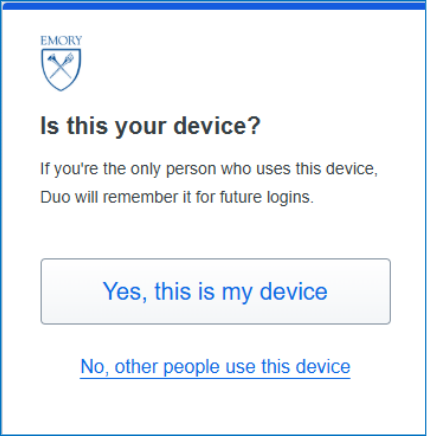
There are several common reasons why you may not be prompted on the ownership of your device:
- If you have configured Duo to automatically send you a verified push or SMS message instead of asking you which one to use
- If your web browser does not have cookie support enabled. If you are using the F5 stand-alone VPN client, make sure that cookies are enabled in Edge (if you're using Windows) or Safari (if you're using a Mac).
Emory’s Website on Duo MFA: https://it.emory.edu/security/two_factor/index.html
Duo Vendor Guide with Additional Details: https://guide.duosecurity.com
If this FAQ and the other references listed above don’t address your need, you can also Call the Service Desk:
- The University Service Desk may be reached at 404-727-7777.
- Emory Healthcare Service Desk, 8-Help, may be reached at 404-778-4357.
There are several common reasons why you may not be able to select the option that you own the device.
- You are not using a web browser to access the application, or your web browser does not have cookie support enabled. If you are using the F5 stand-alone VPN client, make sure that cookies are enabled in Edge (if you're using Windows) or Safari (if you're using a Mac).
- Some sites that require higher security, such as the PeopleSoft/eVantage direct deposit page, will not allow trusted devices to be used.
iPhone/iPad with Microsoft Authenticator: fix “Oops, something went wrong”
If you sign in to Microsoft apps (Outlook, Teams) on an iPhone/iPad and have both Microsoft Authenticator and Duo Mobile installed, the login can bounce between the apps and produce an “Oops, something went wrong” error. If Microsoft Authenticator is not installed, these steps do not apply.
If you don’t use Microsoft Authenticator but have it installed, removing it simplifies the login and usually resolves the error.
Verified Push users - follow this exact sequence:
- Sign in as normal and follow the prompts to the Redirecting screen.
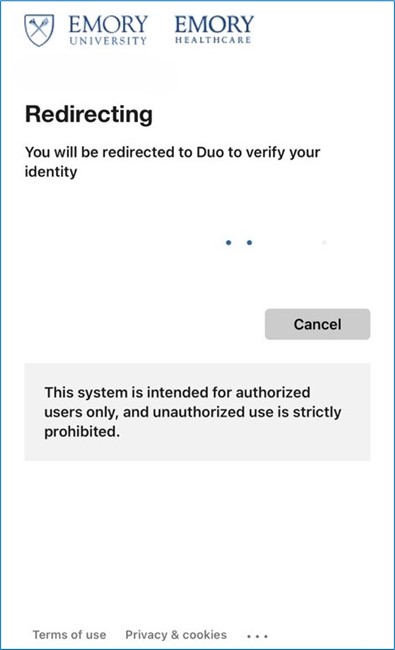
- A screen with a 3-digit Duo code appears - remember the code.
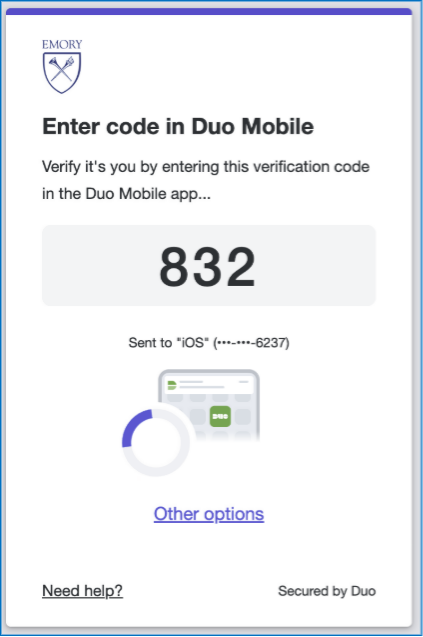
- When the Duo Verified Push notification appears, tap it, enter the code in Duo Mobile, and tap Verify (you’ll see a brief green “approved”).
- If Microsoft Authenticator prompts you to Unlock, do so.
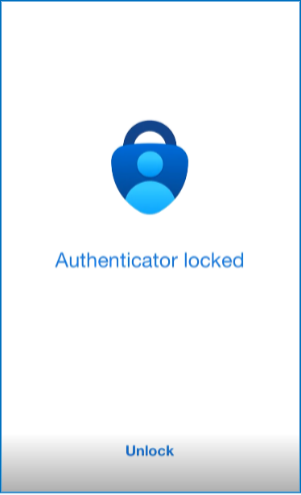
- Switch directly back to Microsoft Authenticator, which returns you to the app that started the process (Outlook/Teams).
Ensure that you have allowed the Duo app to send you push notifications. This must be enabled for you to receive a push notification without manually checking the app.
Android Users: Go to settings > apps > Duo Mobile > Notifications and make sure "Allow Peeking" is set to on, and "Block all" is set to off. (These instructions may vary if you are using a version of Android older than 6.0)
iPhone Users: Go to settings > notifications > Duo Mobile and make sure "Allow Notifications" is set to on.
If you are on the new Duo Verified Push version, ensure you are entering the 3-digit code displayed on the login screen into the Duo app.
Verified Push notifications can occasionally be delayed if your device switches between networks or has weak signal. You can manually refresh by opening the Duo Mobile app and pulling down to sync pending verification requests.
You may also choose an alternate authentication method such as Duo Mobile Passcode or Text Message (SMS) passcode options.
Also, be sure that you have allowed the Duo app to send you push notifications. This must be enabled for you to receive a verified push notification without manually checking the app.
If you already understand how to add devices to Duo, you can do it from the Duo Self-Service Portal. Otherwise, use the specific guide for the type of device you want to add:
Duo Mobile users: If you will be in places where cell coverage is poor or unavailable and you need to access Emory systems, we recommend connecting your smart device (phone or tablet) to Wi-Fi if possible, so that Duo on your device can function properly. Duo Mobile generally works well on Wi-Fi even when cell coverage is poor or unavailable.
Access to Emory applications from an Emory Mac or PC without a smart device: If your smart device cannot be used but you still need to use an Emory PC or Mac, we recommend enrolling your PC or Mac to be used directly with Duo (Windows Hello or Apple Touch ID). See:
Mobile device with passkeys: see the mobile passkey guide.
Access to Emory applications from a non-Emory device without a smart device: If you must access Emory applications from a non-Emory system and cannot use any of the Emory-recommended Duo methods above, you will need a YubiKey, and the non-Emory device must have USB or NFC support. See the YubiKey guide.
Duo Mobile passcode option (being phased out): This option is being phased out (see “Attention: Fall 2026 Duo Policy Changes”). If “Duo Passcode” appears in the “Other options” screen when Duo MFA is required, you can use it until it goes away: choose Other options, select Duo Mobile passcode, then open Duo Mobile, tap Show next to the Emory passcode, type the code, and click Verify. We recommend transitioning to a passkey method when you can.
- Update your phone's operating system. Duo Mobile is supported on iOS and Android for as long as your phone's vendor is still patching the operating system. Upgrade to the newest version of iOS or Android your phone accepts, then try to install or update Duo Mobile again. This resolves most cases.
- If your phone is already on the latest operating system it supports and Duo Mobile still won't load, that phone can no longer be used for Duo. It has stopped receiving security patches from the vendor, and Duo Mobile support ends with them. You can still install Duo Mobile on another supported device you already own, such as a tablet, or on a newer phone. See the smart device enrollment guide to set it up.
- Or enroll a passkey on a device that is still supported. A passkey replaces the Duo Mobile app entirely. On an Emory owned computer you can enroll Apple Touch ID or Windows Hello, and on a phone or tablet you can enroll a mobile passkey. Enroll a passkey only on a device that is not end of life and is still receiving operating system updates. A device that no longer receives security patches is not a safe place to hold a passkey, so an unsupported phone is not an option here either. See the Windows Hello passkey guide, the macOS Touch ID passkey guide, or the mobile passkey guide.
- Alternatively, use a YubiKey. If you don't have another supported device, an Emory approved YubiKey hardware key can be used in place of the Duo Mobile app. See the security key (YubiKey) setup guide to get started. A newer phone or a YubiKey is at your own cost, and employees can also check with department to see if the expense can be covered, but this is always a departmental decision.
If you do not have a smart phone:
- Duo Mobile can also be used on many Smart Tablets (like Apple iPads or Android tablets). This option works just like smart phones, and you can easily complete a Verified Push if you have Internet connectivity or lookup a Duo Passcode if the device is offline.
- Hardware Keys can be used if you don’t have a Smart Phone or Smart Tablet, but cost may be incurred, and there are some limitations. See the above section (“Can I use hardware keys or tokens?”).
It’s highly recommended that all employees use the Duo application on their personal device of choice (Smart Phone or Tablet) for MFA because this software is free, secure, and well-supported. For Duo Mobile app setup and enrollment information, please refer to: security/two_factor/smart_device
It is important to note that Duo Mobile cannot see your user data like your contacts, it cannot read your text messages, it cannot access your photos (but it can use your camera to scan a QR code if you explicitly allow that permission), it cannot access your files, it cannot erase your device, it cannot see information about other applications on your device. Duo Mobile does not track your specific location (e.g. Location Services or GPS). However, for security purposes Duo Mobile does capture the IP address of your device during MFA activity to detect and respond to malicious activity. In general, the only personal data that Duo Mobile knows about you are the service accounts that you explicitly add to Duo Mobile. However, Duo does not track any personal data about these accounts -- only the name of the service. For more information on the Duo Website, see - Duo Mobile Privacy Information
If a user does not want to use a personal device for their MFA or any of the other free options provided by Emory, the user at their or their department's expense will need to purchase and use a YubiKey hardware token for access. For more information on Emory approved YubiKeys and relate guidance: security/two_factor/security_key
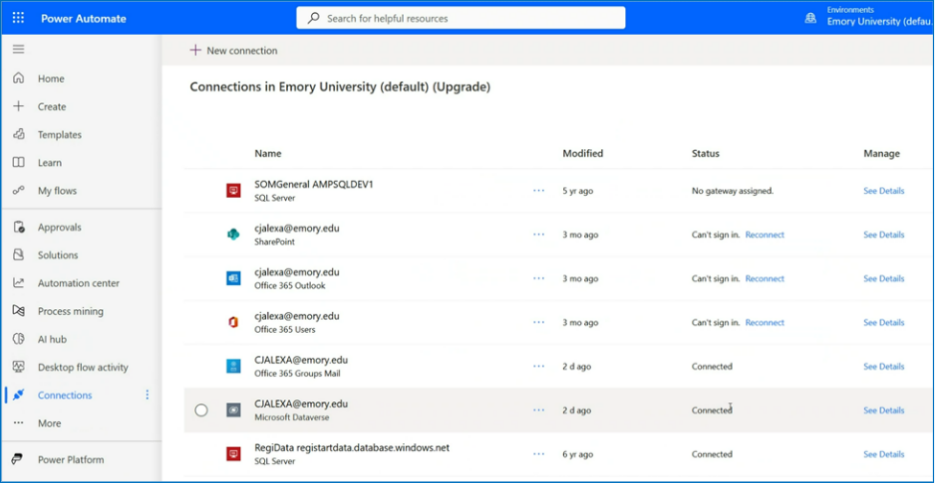
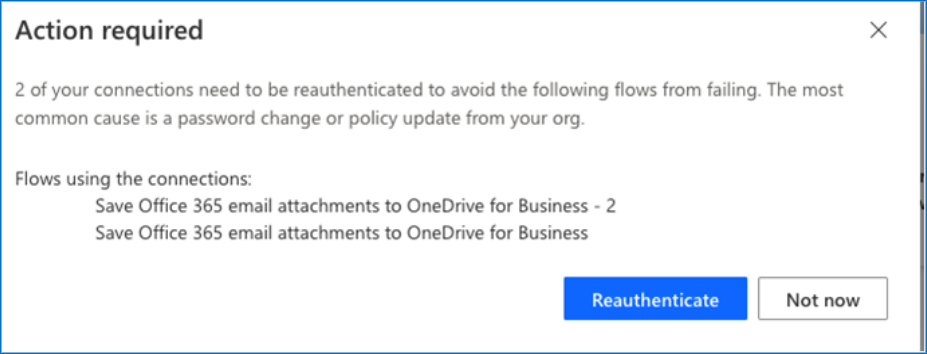
You may see a pop-up asking you to reauthenticate your connections.
- Note the “action required” pop-up.
- Open Power Automate and go to Connections.
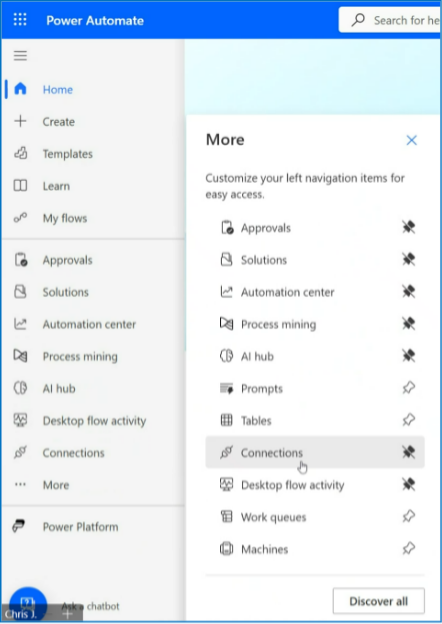
- Select Reconnect under the Status column and follow the prompts.