Mac OS Touch ID Enrollment
In order to use Touch ID with Duo, make sure you have the following:
- A MacBook Pro or MacBook Air with a Touch ID button.
- A fingerprint enrolled in Touch ID (see how to do this at the Apple Support site).
- Chrome 70 or later
You must use a normal Chrome browsing window for Touch ID enrollment or authentication. Duo can't use Touch ID in an Incognito window.
Adding Touch ID
On a computer (Pc or Mac)
- Sign in to a Duo-protected application (or the Duo Self-Service Portal) with your Emory Network ID and password.
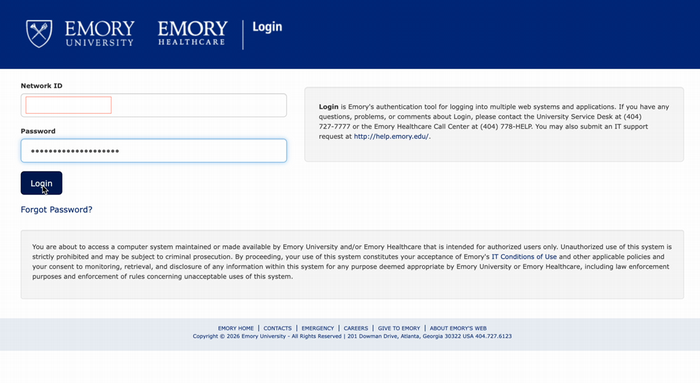
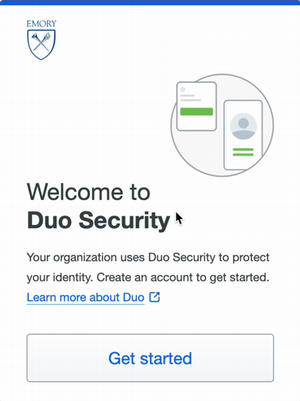
- At Welcome to Duo Security, select Get started.
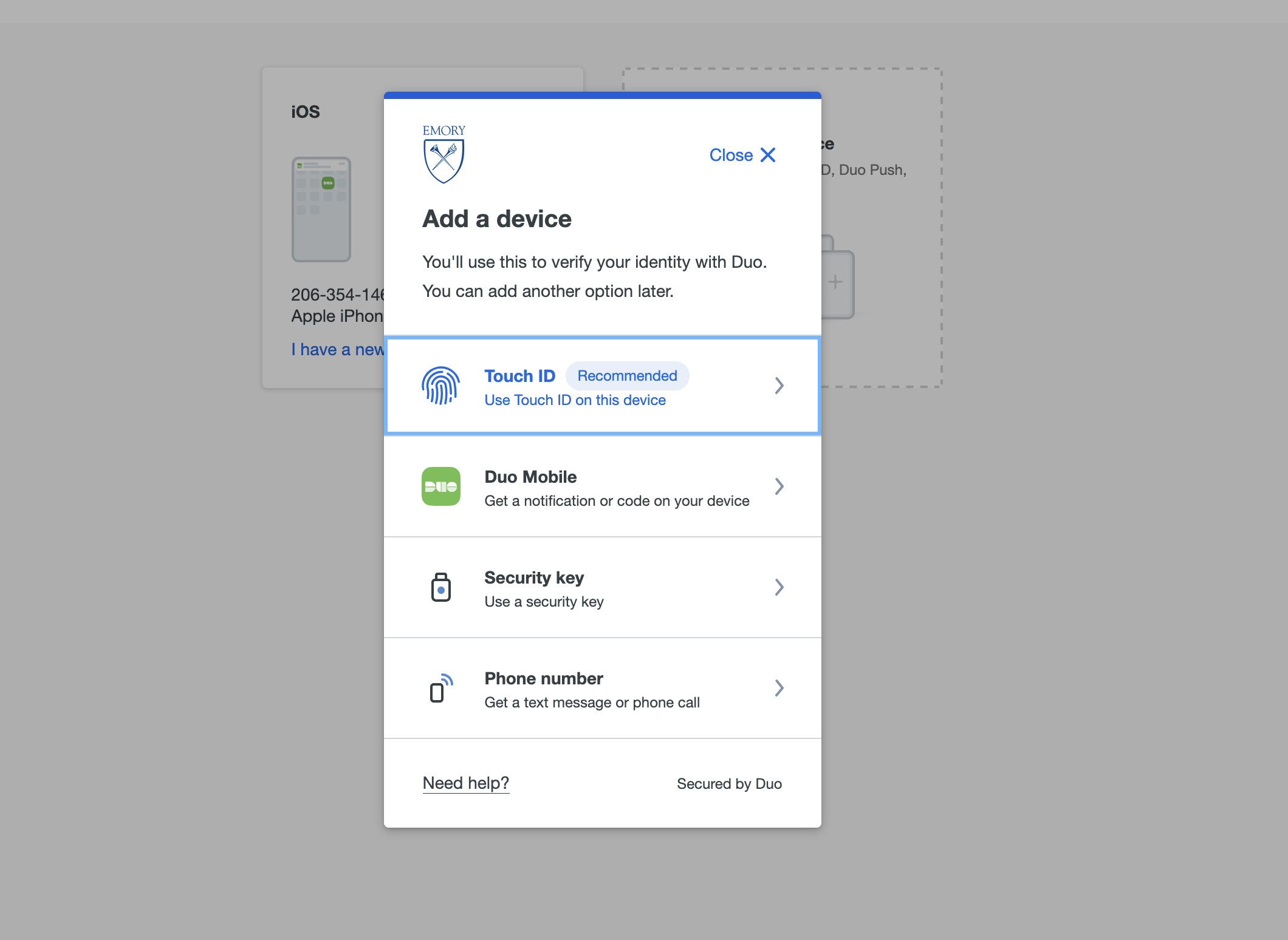
From the list of device options, select Touch ID (Recommended)
- Select Continue.
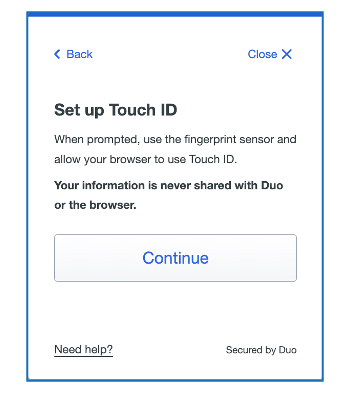
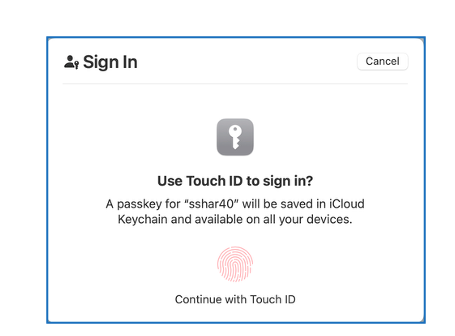
- When prompted by your browser, allow it to use Touch ID.
- Select Continue with Touch ID.
- Place your finger on the Touch ID sensor to complete the confirmation.
- Select Continue.
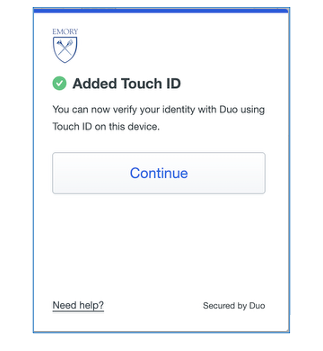
- You can now use Touch ID to verify your identity with Duo on this Mac.
- Sign in to a Duo-protected application (or the Duo Self-Service Portal) with your Emory Network ID and password.
Important: You cannot use a phone call, text message, or Duo Mobile passcode to manage devices. If those are your only options, contact the University Service Desk (404-727-7777) or Emory Healthcare IS Customer Service (404-778-4357).
On a computer (Pc or Mac)
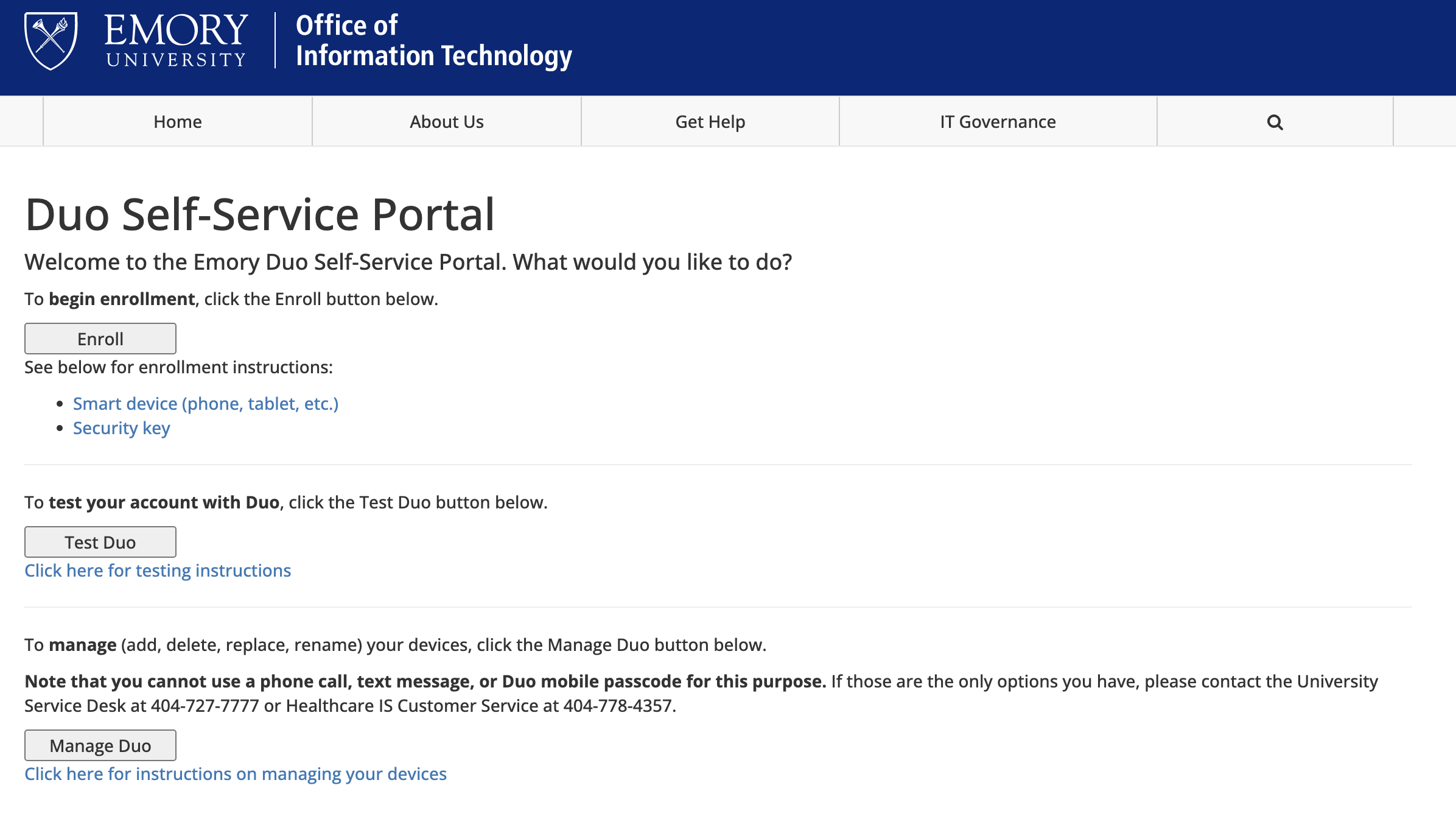
- In your browser, open the Duo Self-Service Portal and click Manage Duo.
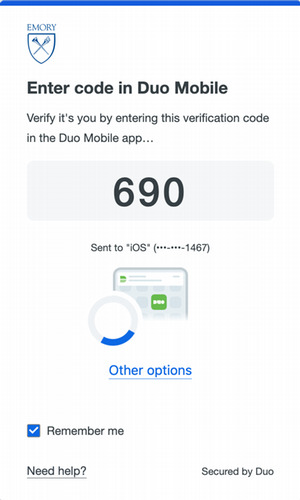
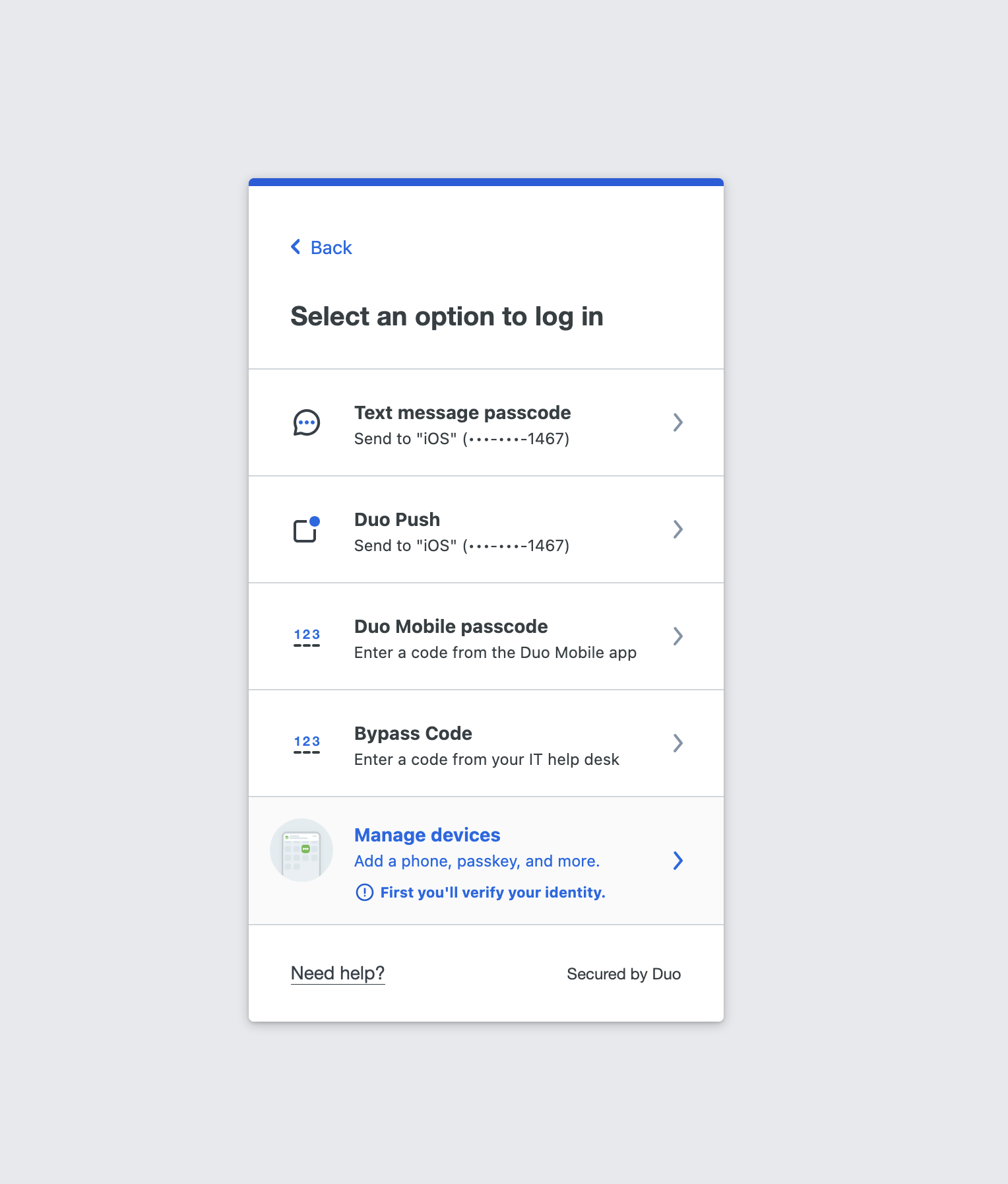
- At the verification prompt, click Other options (do not send a passcode).
- Select Manage devices.
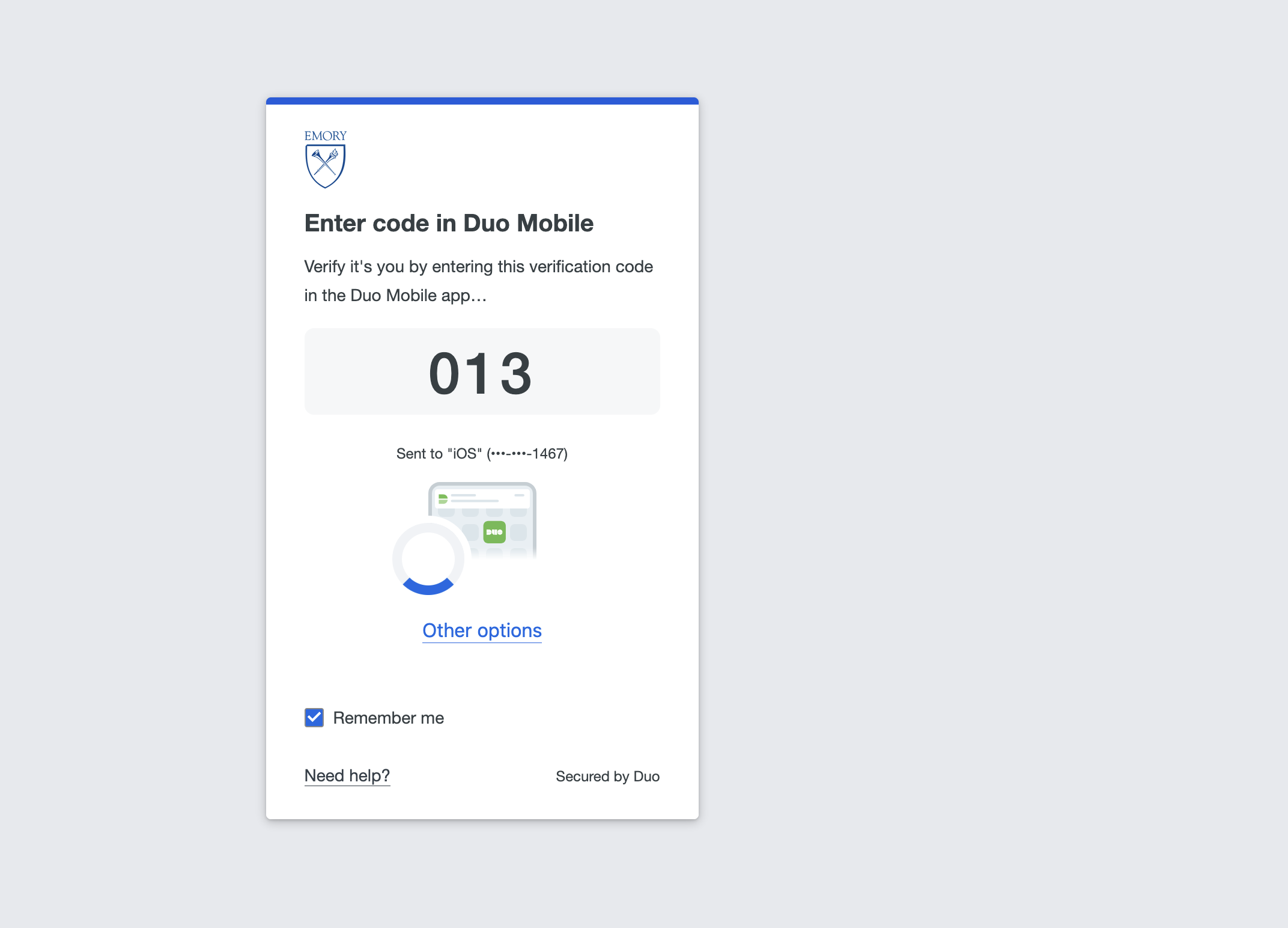
- Complete the identity verification Duo presents (for example, enter the code in Duo Mobile).
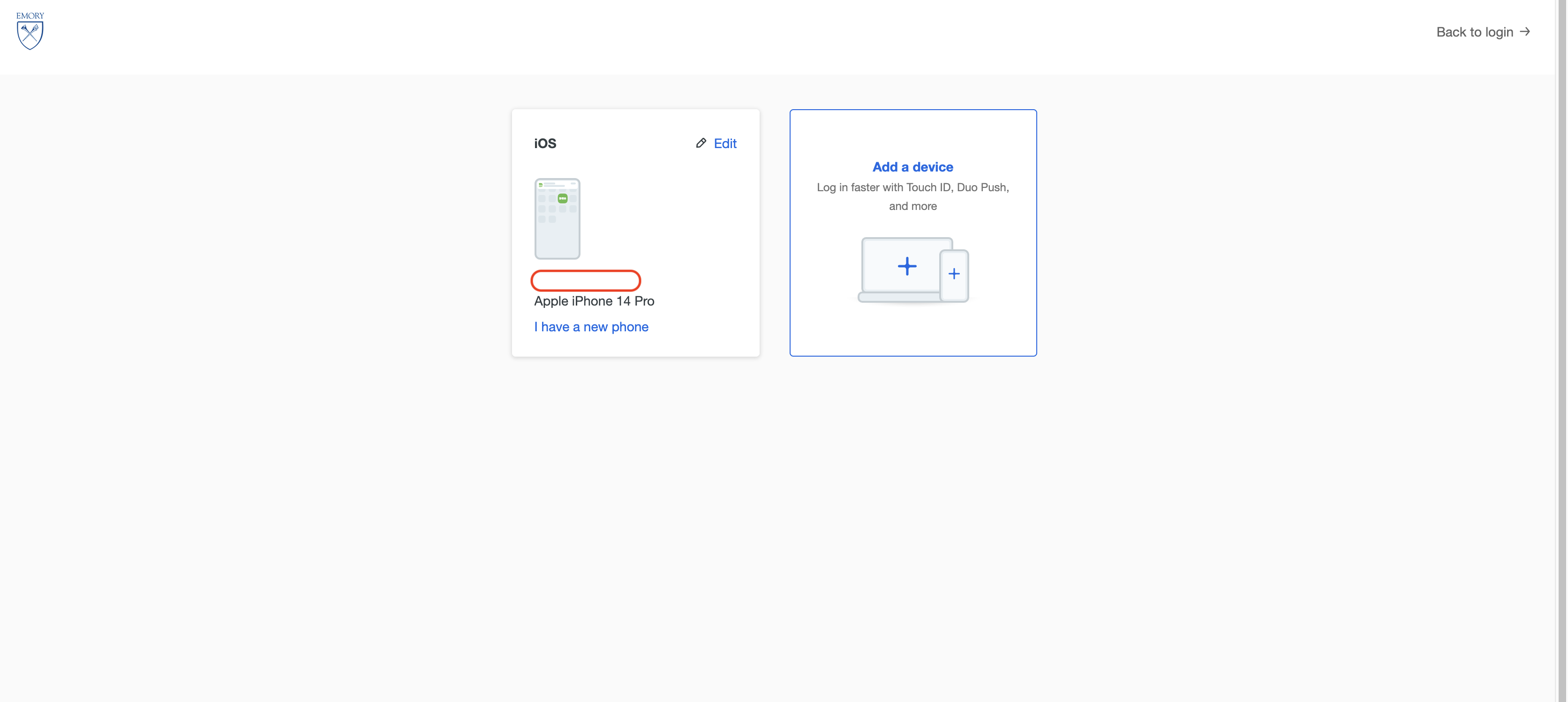
- On the device management page, click Add a device.
From the list of device options, select Touch ID (Recommended)
- Select Continue.
- When prompted by your browser, allow it to use Touch ID.
- Select Continue with Touch ID.
- Place your finger on the Touch ID sensor to complete the confirmation.
- Select Continue.
- You can now use Touch ID to verify your identity with Duo on this Mac.
- In your browser, open the Duo Self-Service Portal and click Manage Duo.