Mobile passkey
A mobile passkey is a passkey stored in the password manager on your phone, either Google Password Manager or iOS Passwords. The passkey never leaves your phone. When you log in on a computer, you scan a QR code with your phone and approve with your phone's unlock method, such as Face ID or a fingerprint. Because the passkey travels with your phone rather than living on a single computer, it is called a roaming passkey, and you can use it to authenticate on any machine. This is different from a device-bound passkey such as Windows Hello or Touch ID, which only works on the computer where it was created and is covered in a separate guide.
Duo supports mobile passkeys and treats them as security keys during setup. You are welcome to use one if you prefer it over the recommended Verified Push. Because there are many passkey technologies, Emory officially supports only the configurations documented here; other setups may work, but support will vary.
Adding Mobile passkey
The steps below are the same whether you use Chrome or Edge on your computer. The only difference is the screen where you choose where to save the passkey: Google Password Manager on Android, or iOS Passwords on an iPhone. You will need a computer with the Chrome or Edge browser, an existing Duo method (such as Duo Mobile) to verify your identity, and a mobile device with a camera that is signed in to Google Password Manager or iOS Passwords.
On a computer (Pc or Mac)
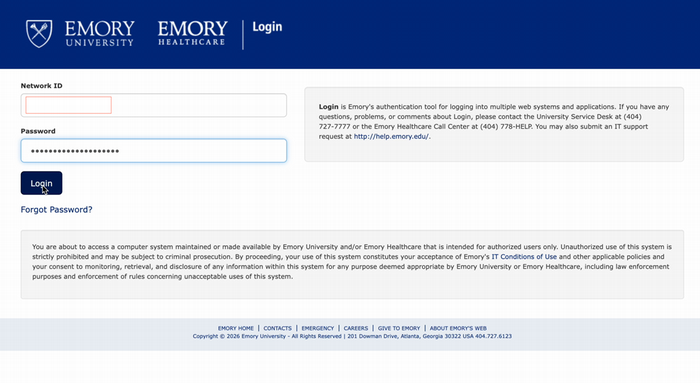
- Sign in to a Duo-protected application (or the Duo Self-Service Portal) with your Emory Network ID and password.
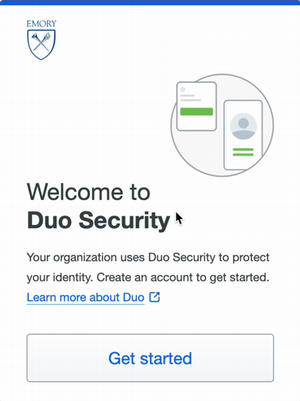
- At Welcome to Duo Security, select Get started.
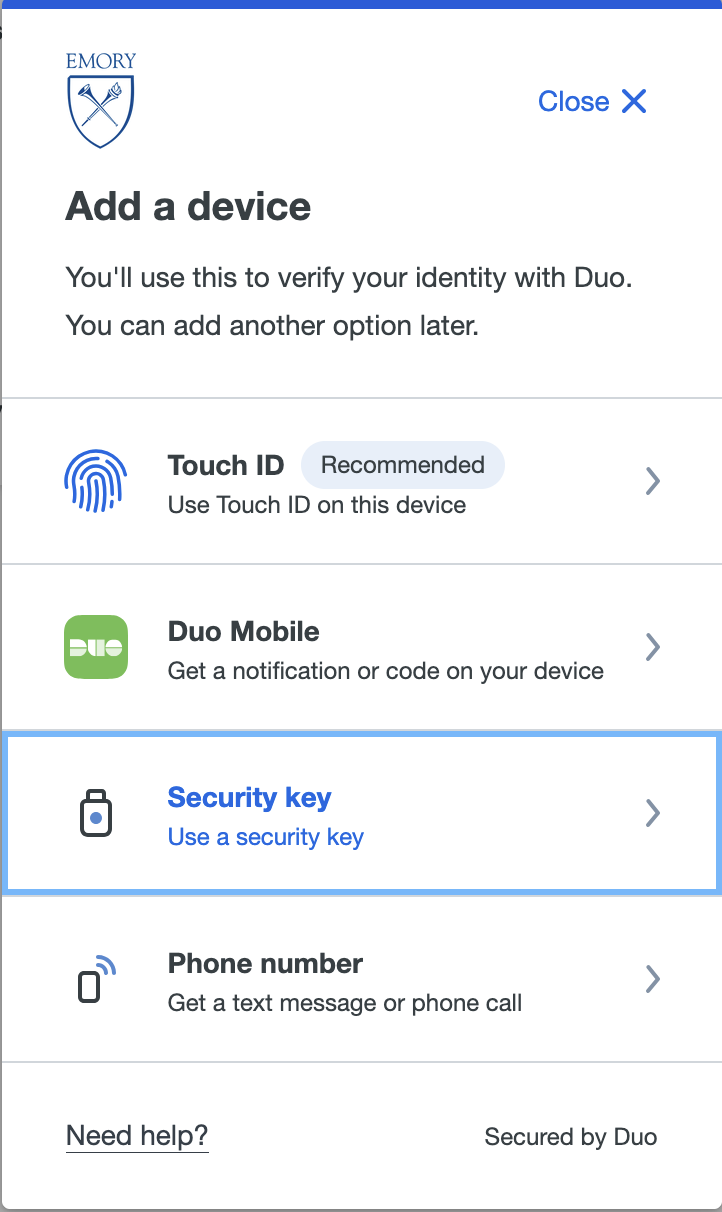
Choose Security key (Duo treats roaming passkeys as security keys).
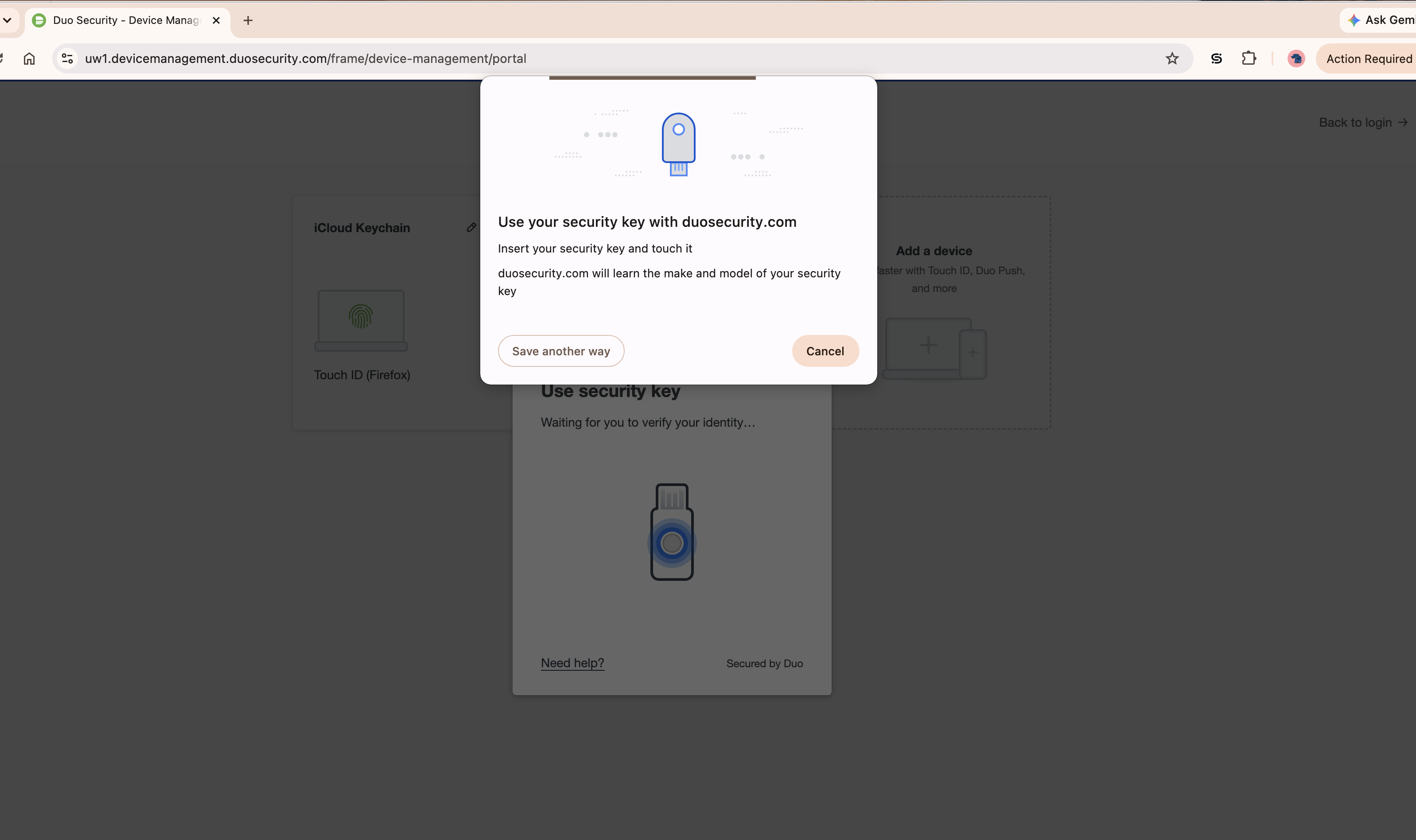
- In the browser's security-key prompt, click Save another way (you are not using a physical key).
- Choose Use a phone or tablet as the passkey location. (This is the step that differs by technology - pick your password manager or device here.)
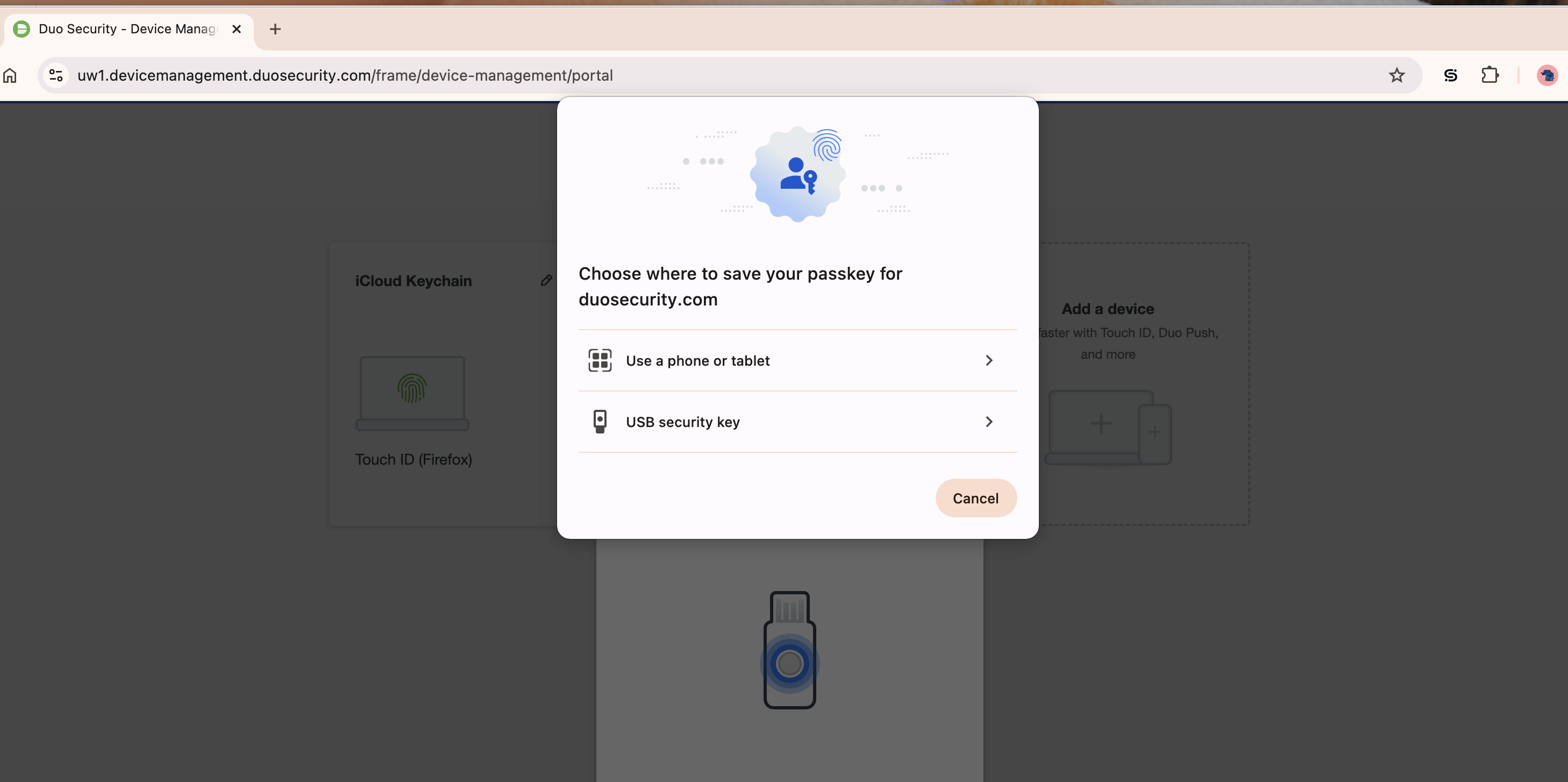
- On your mobile Device - Scan the on-screen QR code with your mobile device's camera, then tap save a passkey.
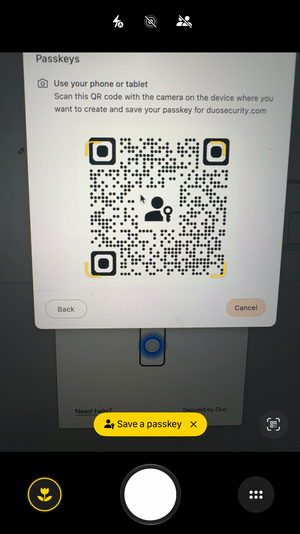
- You will see a prompt to Follow the steps on your device on your PC
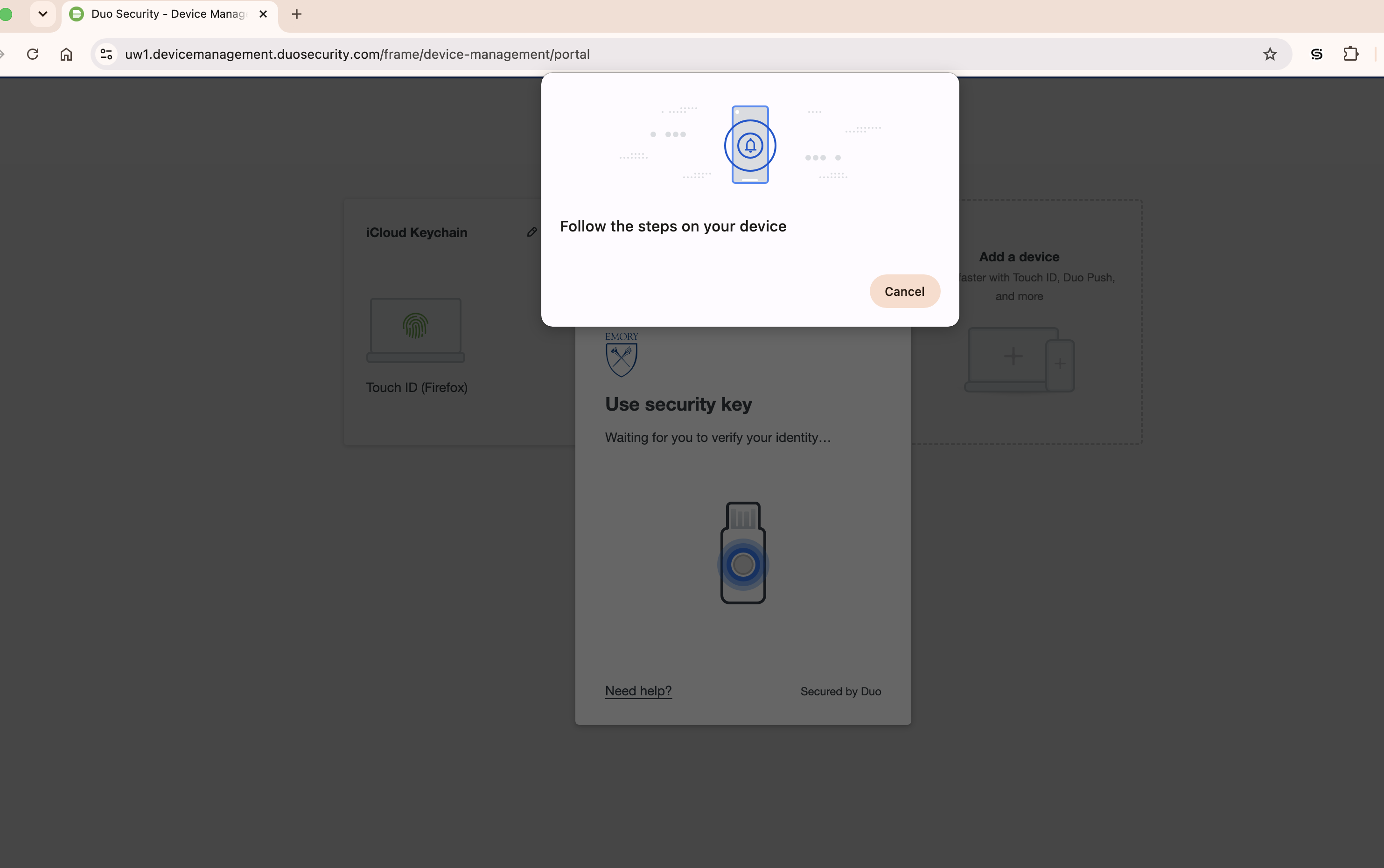
- On your mobile device - click (example: Save in Chrome) And click Add a Passkey to add Google Password Manager as one of your devices. You may also use other password managers that are available to you during this step.
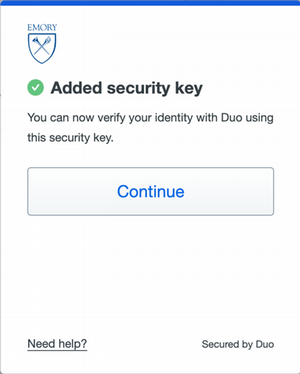
- On your computer you will see Added security key pop-up. Click Continue to finish the setup process.
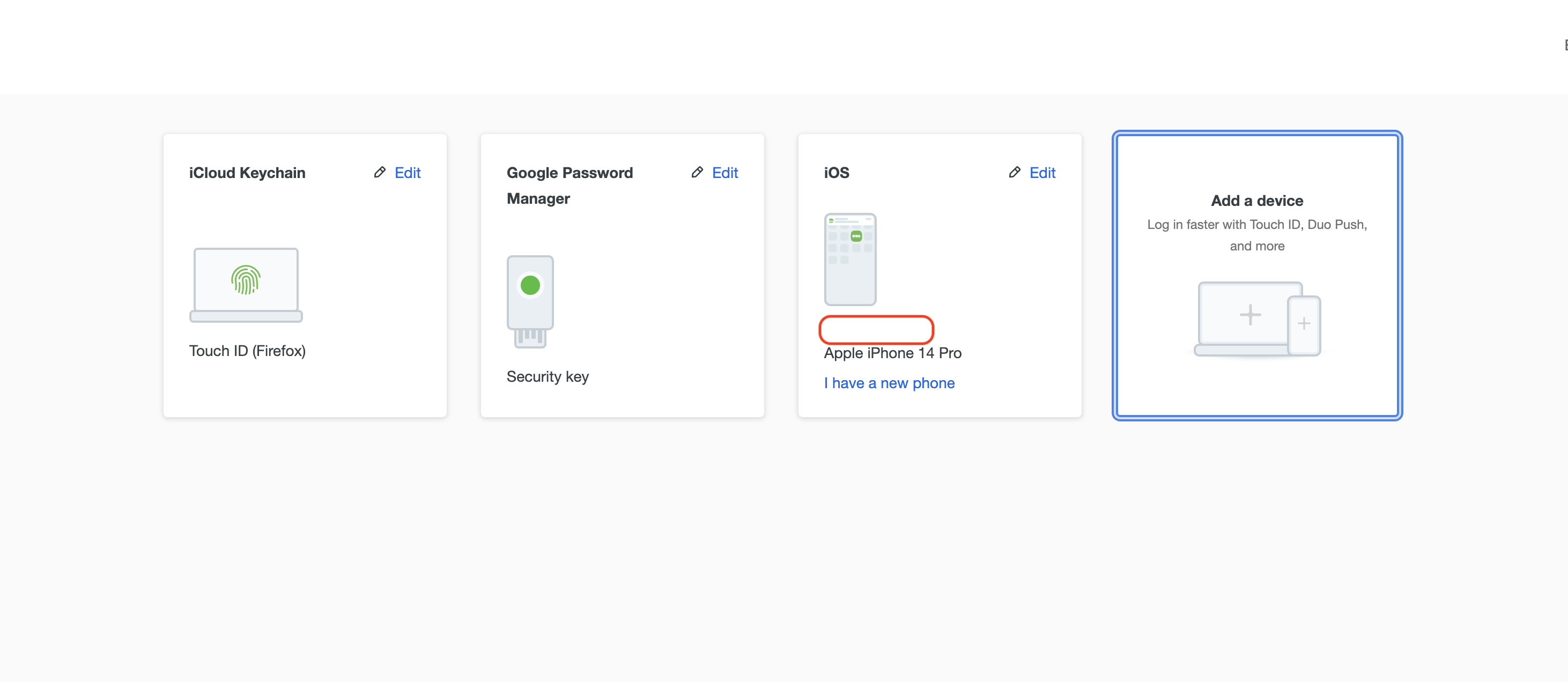
- The passkey now appears as a registered device. You can use it to verify your identity at login.
- Sign in to a Duo-protected application (or the Duo Self-Service Portal) with your Emory Network ID and password.
Important: You cannot use a phone call, text message, or Duo Mobile passcode to manage devices. If those are your only options, contact the University Service Desk (404-727-7777) or Emory Healthcare IS Customer Service (404-778-4357).
On a computer (Pc or Mac)
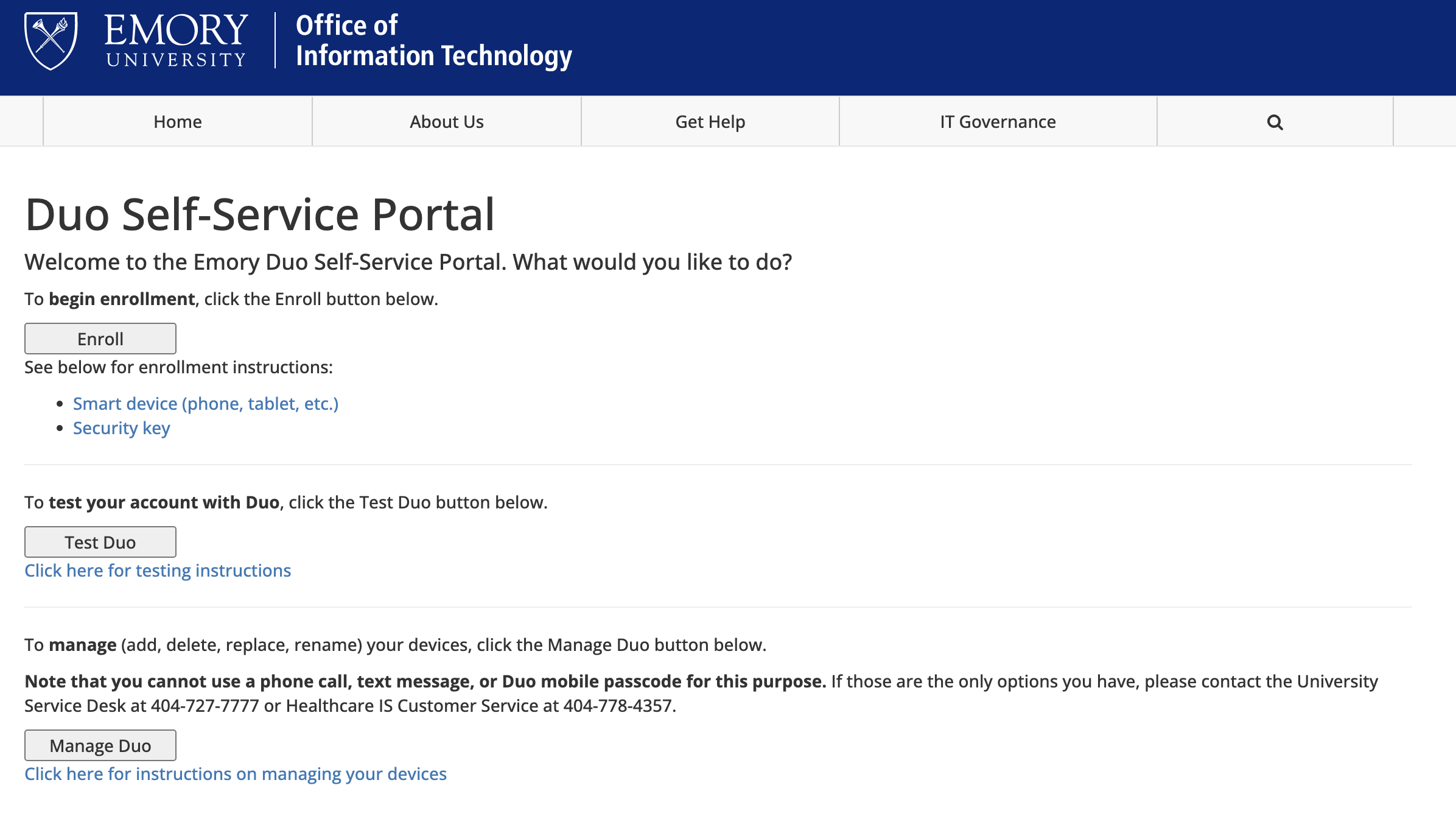
- In your browser, open the Duo Self-Service Portal and click Manage Duo.
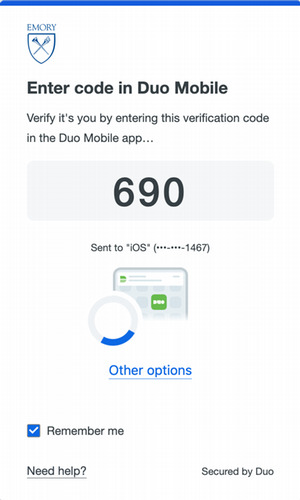
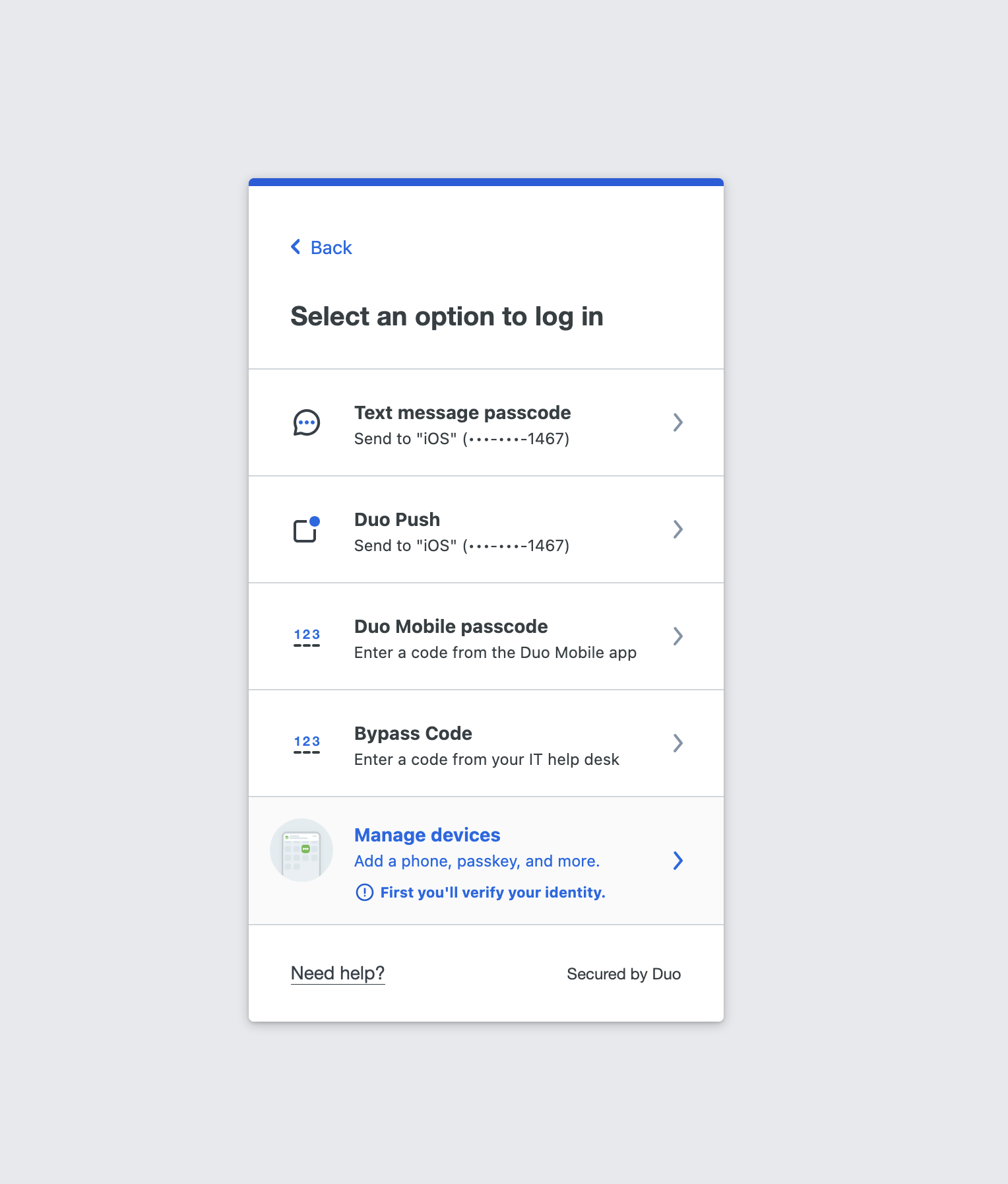
- At the verification prompt, click Other options (do not send a passcode).
- Select Manage devices.
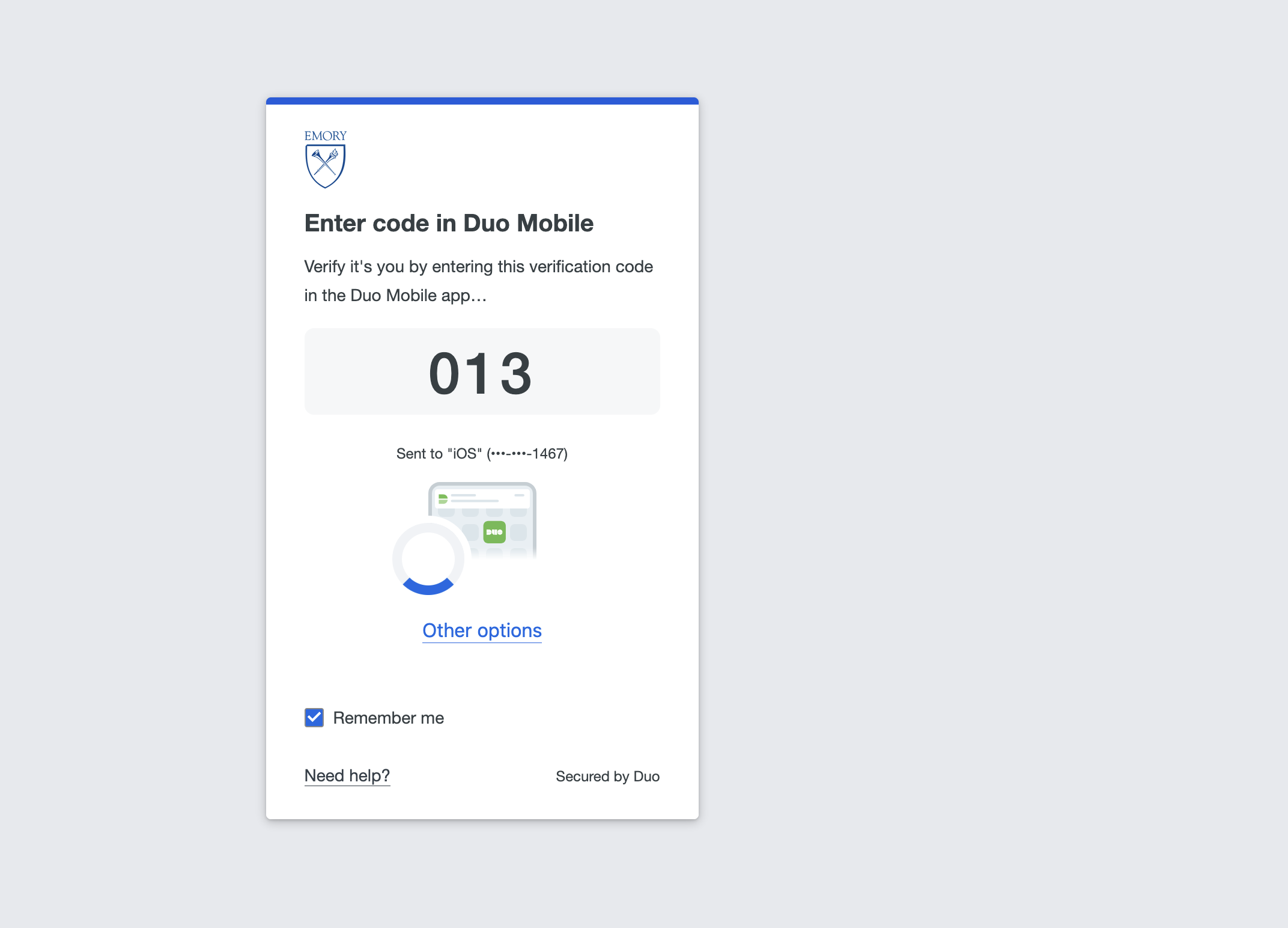
- Complete the identity verification Duo presents (for example, enter the code in Duo Mobile).
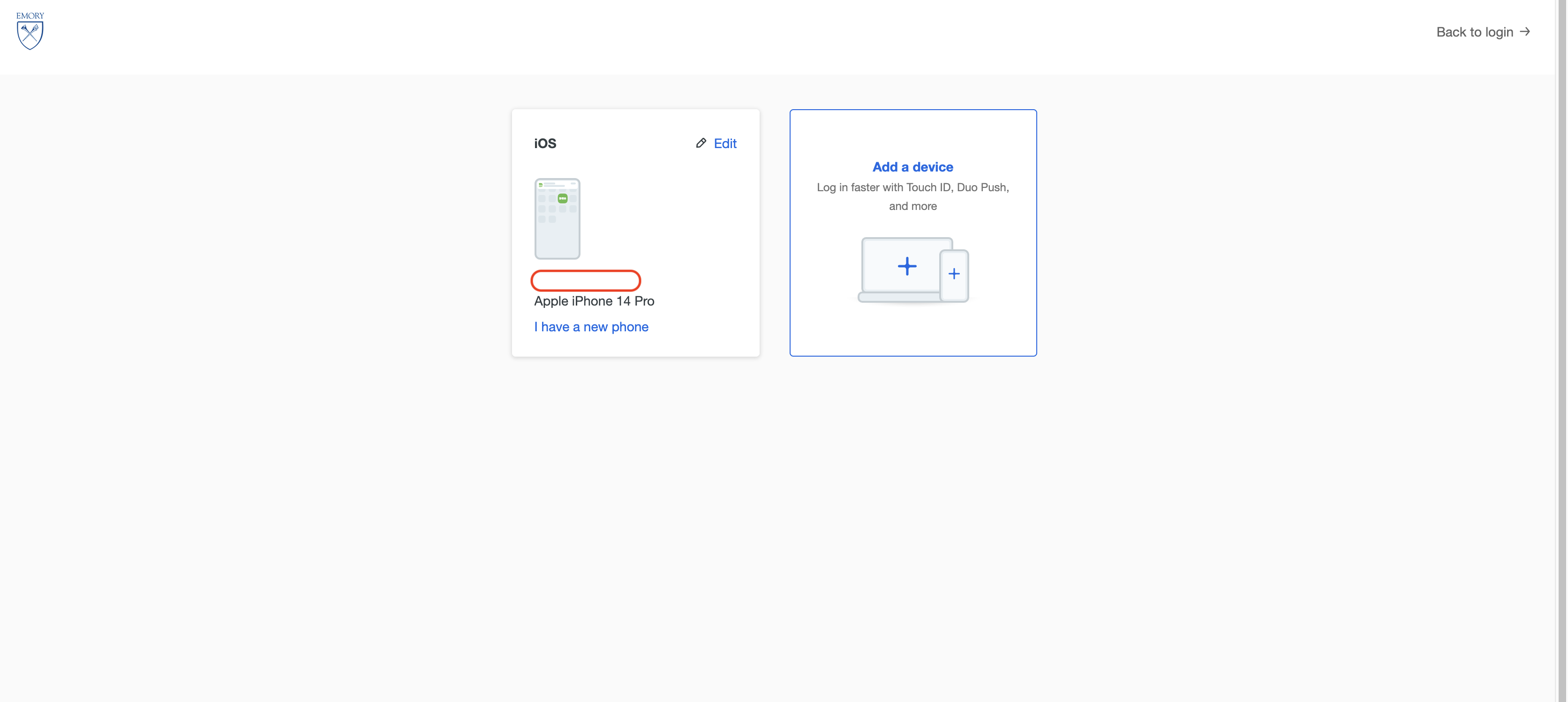
- On the device management page, click Add a device.
Choose Security key (Duo treats roaming passkeys as security keys).
- In the browser's security-key prompt, click Save another way (you are not using a physical key).
- Choose Use a phone or tablet as the passkey location. (This is the step that differs by technology - pick your password manager or device here.)
- On your mobile Device - Scan the on-screen QR code with your mobile device's camera, then tap save a passkey.
- You will see a prompt to Follow the steps on your device on your PC
- On your mobile device - click (example: Save in Chrome) And click Add a Passkey to add Google Password Manager as one of your devices. You may also use other password managers that are available to you during this step.
- On your computer you will see Added security key pop-up. Click Continue to finish the setup process.
- The passkey now appears as a registered device (for example, Google Password Manager). You can use it to verify your identity at login.
- In your browser, open the Duo Self-Service Portal and click Manage Duo.