
Security Key (YubiKey) Enrollment
YubiKey (requires a hardware key)
An Emory-approved YubiKey is a good option if you prefer not to use a personal phone, or if you travel internationally often. The cost of the YubiKey is covered by you or your department; see the Emory YubiKey Guidance for approved models and procurement.
Adding Security Key (YubiKey)
On a computer (Pc or Mac)
- Sign in to a Duo-protected application (or the Duo Self-Service Portal) with your Emory Network ID and password.
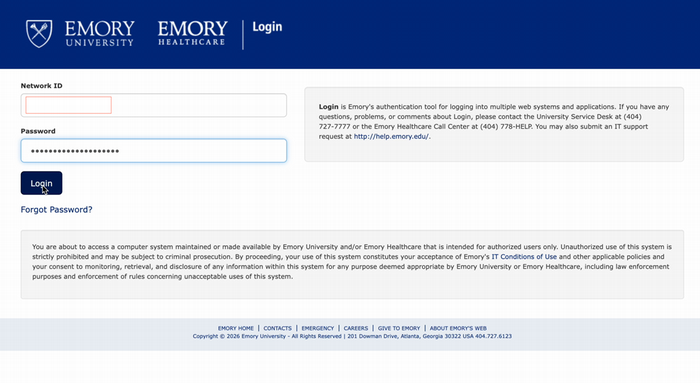
- At Welcome to Duo Security, select Get started.
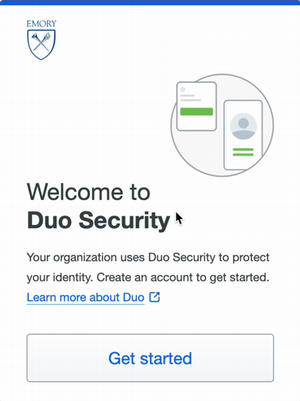
- Choose Security key
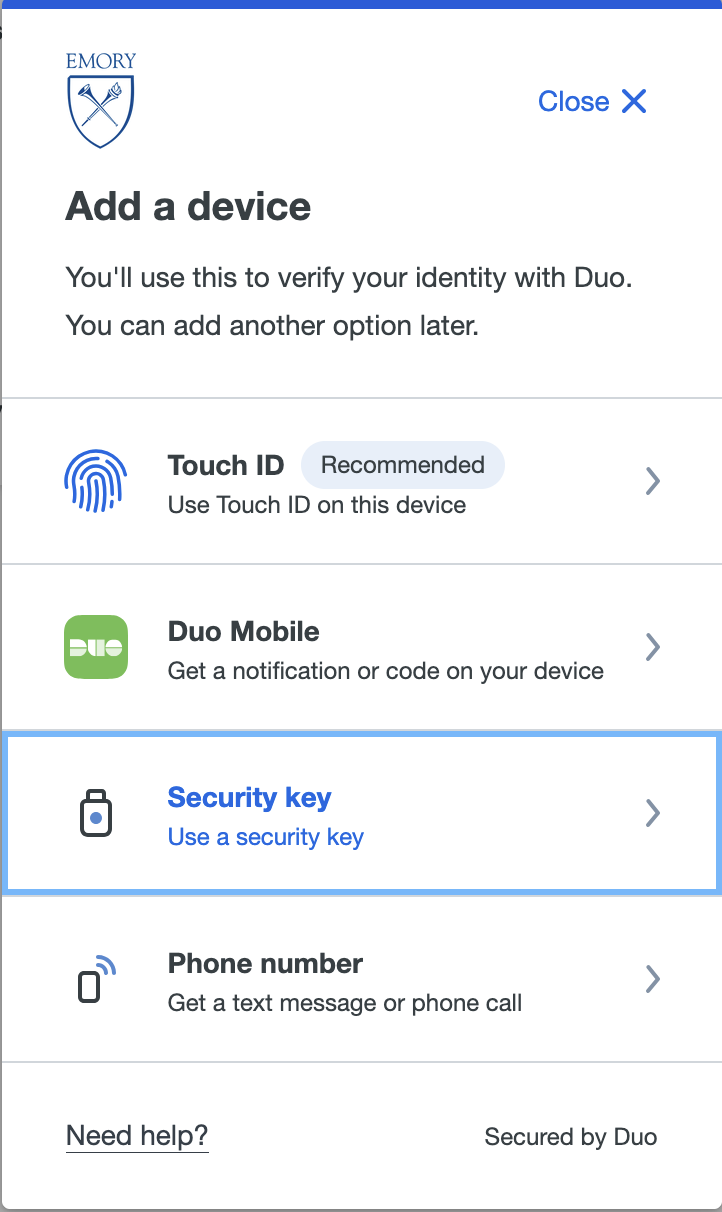
Click Continue
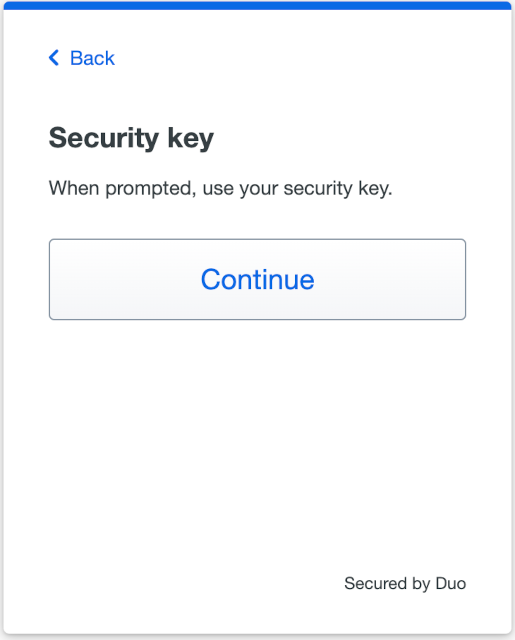
Insert your security key into a USB port on your computer and touch the button.
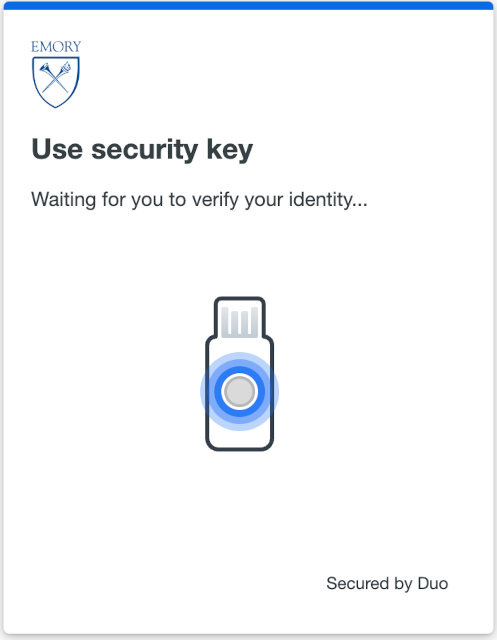
Click Continue
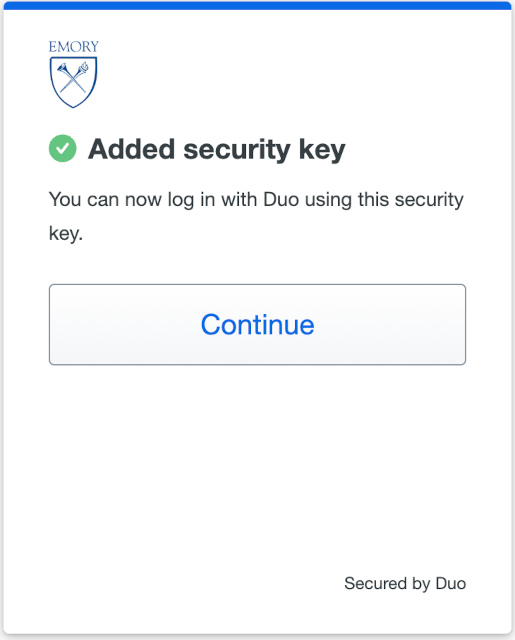
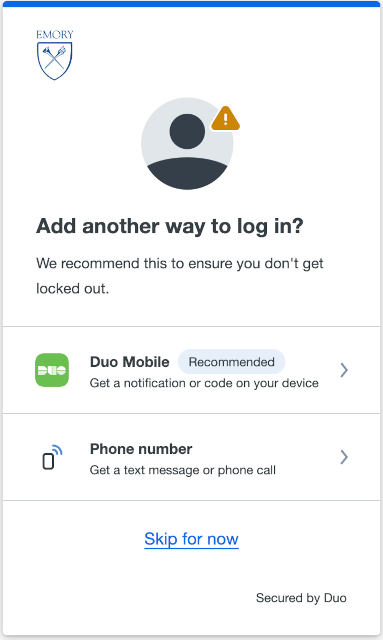
A screen will ask if you want to add another way to log in. Click Skip for now.
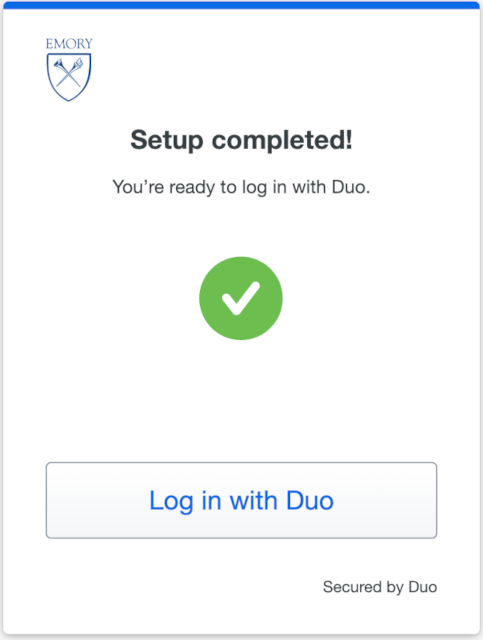
Click Login to Duo to start using your Security Key
The Security Key now appears as a registered device.
- Sign in to a Duo-protected application (or the Duo Self-Service Portal) with your Emory Network ID and password.
Important: You cannot use a phone call, text message, or Duo Mobile passcode to manage devices. If those are your only options, contact the University Service Desk (404-727-7777) or Emory Healthcare IS Customer Service (404-778-4357).
On a computer (Pc or Mac)
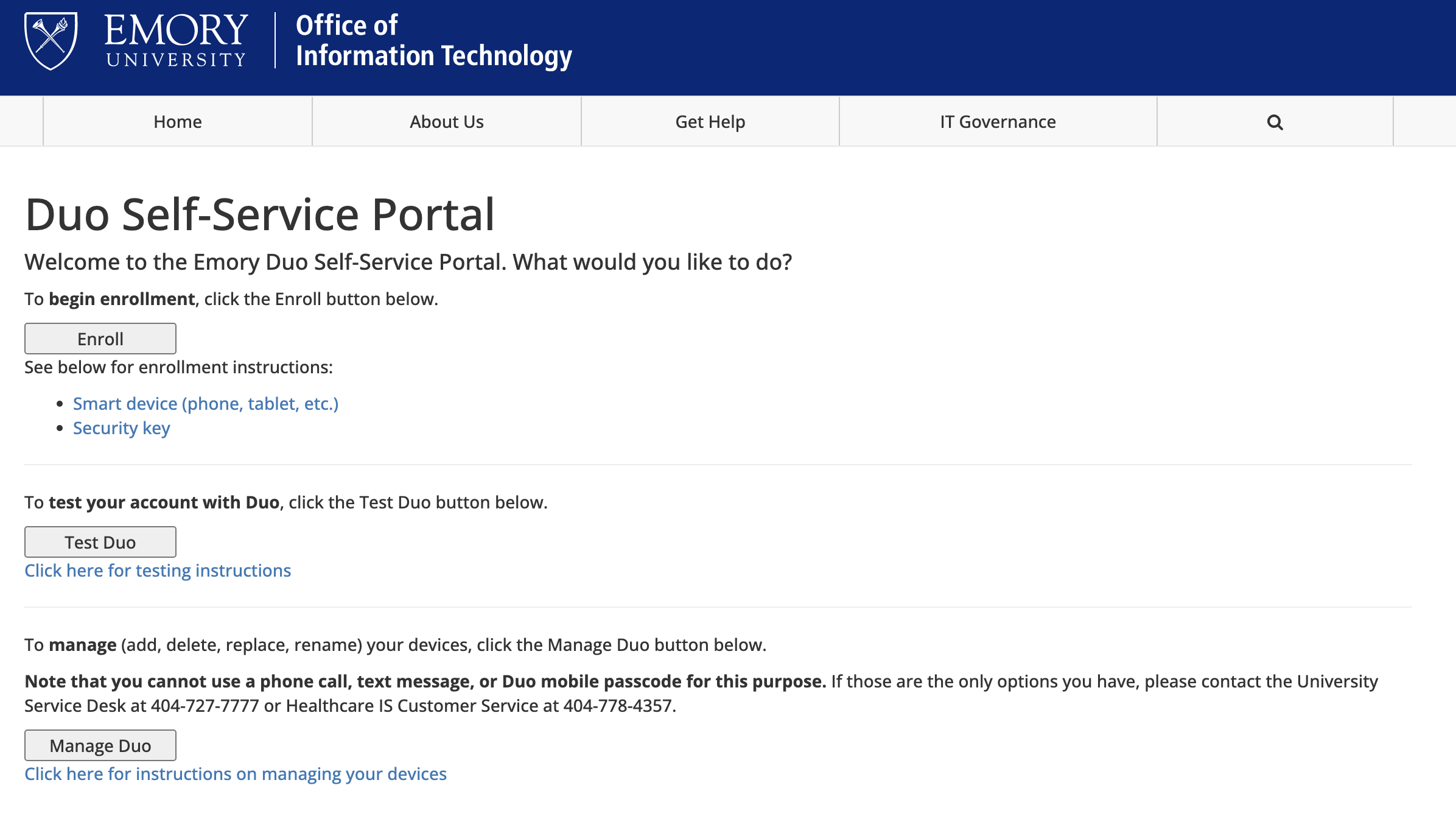
- In your browser, open the Duo Self-Service Portal and click Manage Duo.
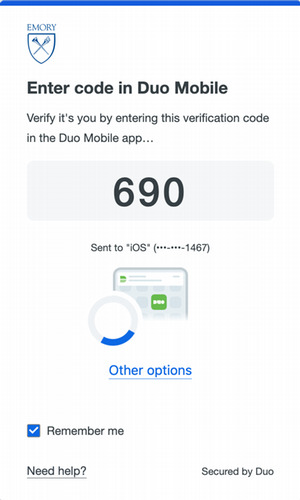
- At the verification prompt, click Other options (do not send a passcode).
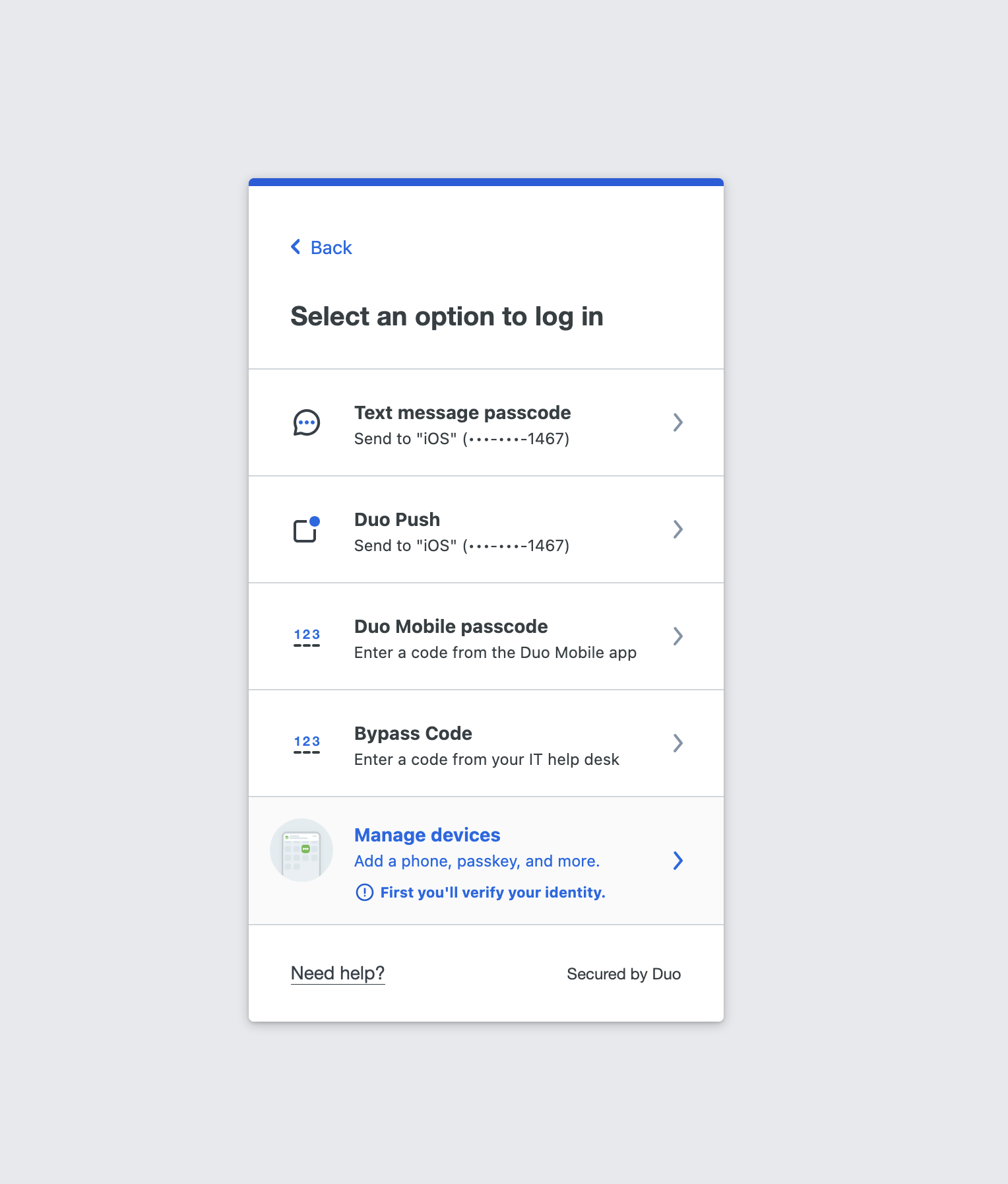
- Select Manage devices.
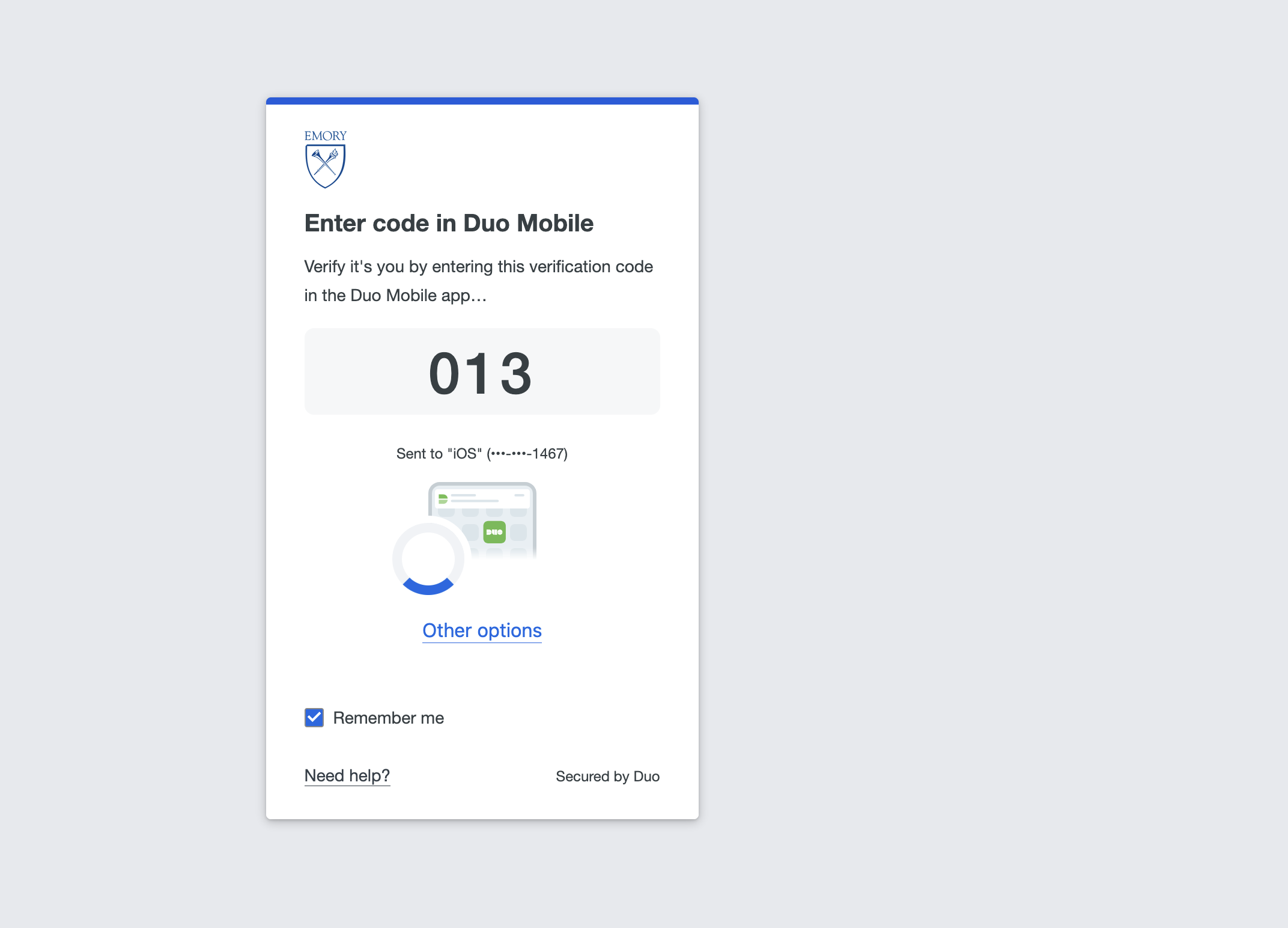
- Complete the identity verification Duo presents (for example, enter the code in Duo Mobile).
- On the device management page, click Add a device.
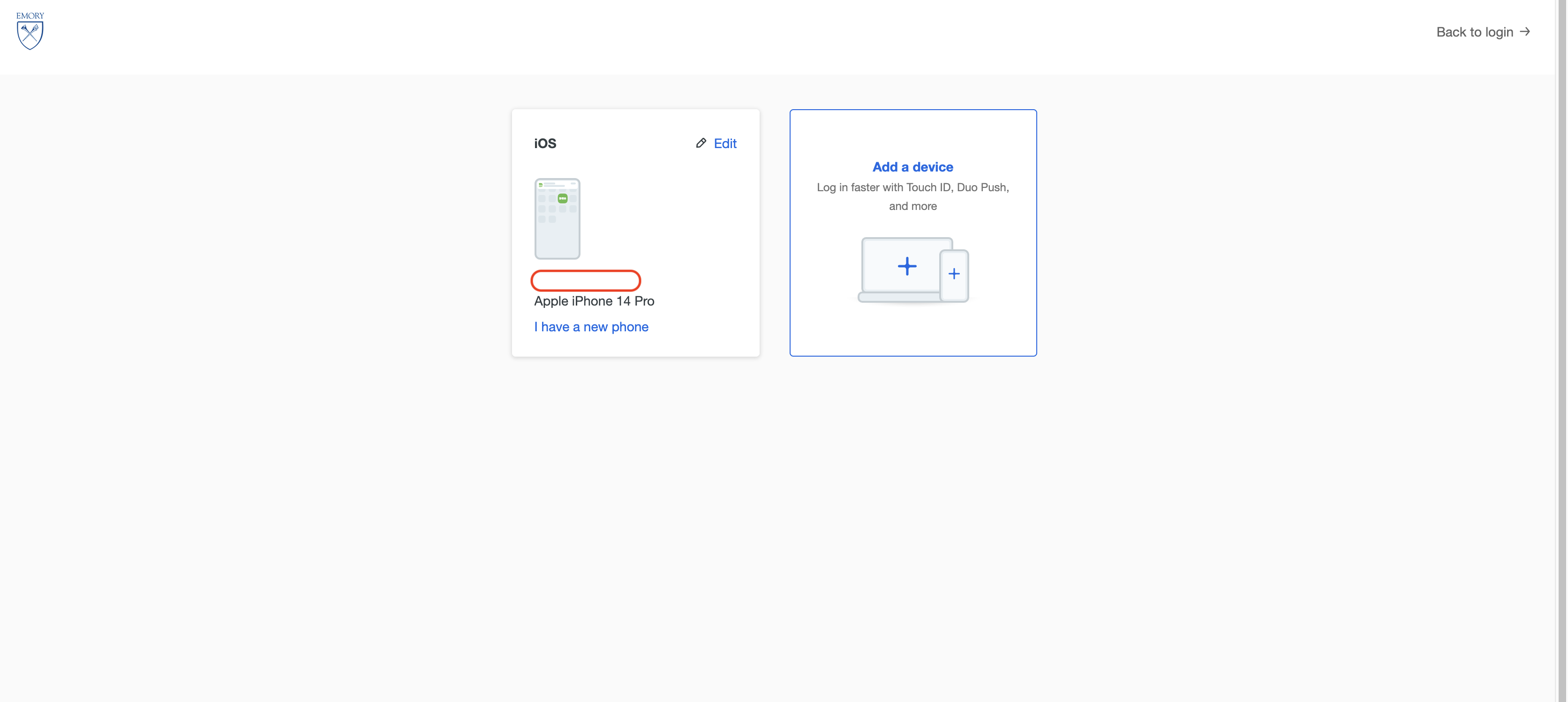
- Choose Security key
Click Continue
Insert your security key into a USB port on your computer and touch the button.
Click Continue
A screen will ask if you want to add another way to log in. Click Skip for now.
Click Login to Duo to start using your Security Key
The Security Key now appears as a registered device.
- In your browser, open the Duo Self-Service Portal and click Manage Duo.

Emory YubiKey Acquisition Guidelines
Overview
Emory provides free recommended options for Duo Multi-Factor Authentication (MFA). If you do not want to use a personal device for their MFA or any of the other free options provided by Emory, the user at their or their department's expense will need to acquire and use a YubiKey hardware token for Duo MFA purposes. If you work for Emory and you desire to have a YubiKey provided to you, you will need to coordinate with your departmental administration and follow your respective departmental procedures for procurement.
Emory YubiKey requirements differ for non-research users and research users. So, please carefully review the requirements below to determine the right YubiKey to acquire.
1. Non-Research Users
If you are not involved in research activities:
- Required Model: YubiKey Series 5
- Allowed Interfaces: USB-A, USB-C, NFC (any combination)
- Activation: Must include touch or bio-touch.
- Devices without touch activation are not allowed.
- FIPS-Certified Keys: Allowed but not required (not recommended).
- Biometric Keys: Not required and not recommended (adds unnecessary complexity).
- The following YubiKeys are recommended for Non-Research Users
Name | Part Number | Description | Recommended for |
Yubikey 5 USB A | B07HBD71HL | Yubico - YubiKey 5 NFC - Two-Factor authentication (2FA) Security Key, Connect via USB-A or NFC, FIDO Certified - Protect Your Online Accounts | Staff & Students |
Yubikey 5C USB C | B08DHL1YDL | Yubico - YubiKey 5C NFC - Two-Factor authentication (2FA) Security Key, Connect via USB-C or NFC, FIDO Certified - Protect Your Online Accounts | Staff & Students |
Yubikey 5Ci USB C and Lightning | B07WGJ1DNJ | Yubico - YubiKey 5Ci - Two-Factor authentication Security Key for Android/PC/iPhone, Dual connectors for Lighting/USB-C - FIDO Certified | Staff & Students |
2. Research Users
If your research requires NIST 800-171 compliance and you use YubiKeys for cryptographic operations like encryption or code-signing that involves the YubiKey, then a FIPS-compliant YubiKey is required.
- Required Model: YubiKey Series 5 FIPS
- Allowed Interfaces: USB-A, USB-C, NFC (any combination)
- Biometric Keys: Not required and not recommended.
- The following YubiKeys are recommended for Research Users
Name | Part Number | Description | Recommended for |
Yubikey 5C USB C (FIPS) | B0DC7315V5 | YubiKey 5C NFC FIPS | Researchers -Criteria defined in requirements doc |
Yubikey 5Ci USB C and Lightning (FIPS) | B0DC74JXDR | YUBICO YubiKey 5Ci FIPS | Researchers -Criteria defined in requirements doc |
Important Notes for Research Users
- FIPS-certified YubiKeys are validated under FIPS 140-2/3.
- Duo Federal is required for phishing-resistant MFA when FIPS compliance is mandated.
- Use of non-FIPS YubiKeys in research contexts may result in non-compliance with federal or agency requirements.
- MFA vs. Encryption: MFA itself does not need to be FIPS-validated unless used to protect Controlled Unclassified Information (CUI). The FIPS requirement applies specifically to cryptographic functions that secure the data.